> ## Documentation Index
> Fetch the complete documentation index at: https://aipro.placetel.de/docs/llms.txt
> Use this file to discover all available pages before exploring further.
# Knowledge Base
> Knowledge Base for voice agents -- PDFs, URLs, and text documents as knowledge sources.
## What is the Knowledge Base?
The **Knowledge Base** lets your voice agent access specific knowledge sources. You can upload PDFs, URLs, or text documents, and your agent automatically uses this information during conversations.
This information extends your AI's knowledge of specific topics and enables more precise, more relevant answers. While AI models have broad general knowledge, they can be enriched with up-to-date or specialized information through additional data sources.
**New in version 2.0:** Modern toggle-based activation, real-time token monitoring, and prompt preview for voice agents.
## Where do I find the Knowledge Base?
### 1. Main navigation (left sidebar)
In the left sidebar you will find the **"Knowledge Base"** entry. This is where you manage all data sources centrally (upload, view, edit, delete).
### 2. Voice Wizard - Knowledge Base tab
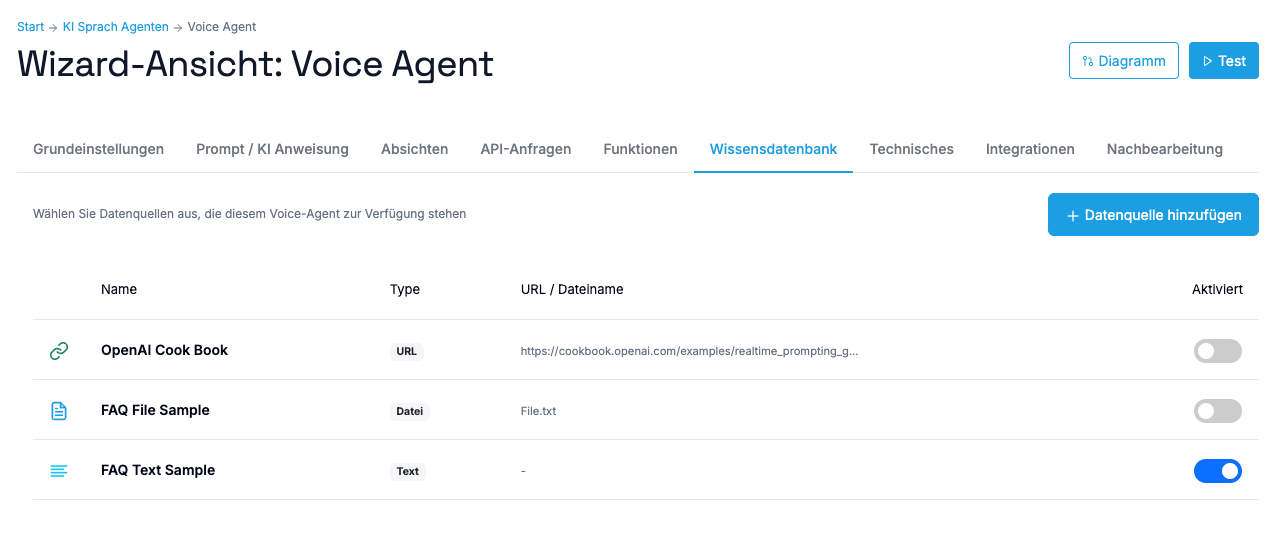
The Voice Wizard has a **"Knowledge Base"** tab where you select which data sources should be activated for your specific voice agent.
 ## Uploading data sources
There are **3 ways** to add knowledge:
* **Max. file size:** 15 MB
* **Max. text content:** Roughly 20-30 pages of text (depending on formatting and text density)
* **Important:** Use high-quality PDFs with clear, extractable text. Scanned images or documents without real text cannot be processed.
**Example:** Product manuals, technical specifications, company policies as PDF.
* Automatic scraping (downloading and extracting) of the website content
* **Max. text content:** Roughly 20-30 pages of extracted text
Some websites prohibit automatic scraping through their configuration or security settings. In such cases we recommend copying the relevant text manually and adding it as a text data source.
**Example:** FAQ pages, product descriptions, support documentation on your company website.
* Direct text entry in the text field
* **Max. text content:** Roughly 8,000 - 12,000 words
**Example:** Current company information, temporary announcements, FAQ texts.
## Uploading data sources
There are **3 ways** to add knowledge:
* **Max. file size:** 15 MB
* **Max. text content:** Roughly 20-30 pages of text (depending on formatting and text density)
* **Important:** Use high-quality PDFs with clear, extractable text. Scanned images or documents without real text cannot be processed.
**Example:** Product manuals, technical specifications, company policies as PDF.
* Automatic scraping (downloading and extracting) of the website content
* **Max. text content:** Roughly 20-30 pages of extracted text
Some websites prohibit automatic scraping through their configuration or security settings. In such cases we recommend copying the relevant text manually and adding it as a text data source.
**Example:** FAQ pages, product descriptions, support documentation on your company website.
* Direct text entry in the text field
* **Max. text content:** Roughly 8,000 - 12,000 words
**Example:** Current company information, temporary announcements, FAQ texts.
 ## Activating data sources for voice agents
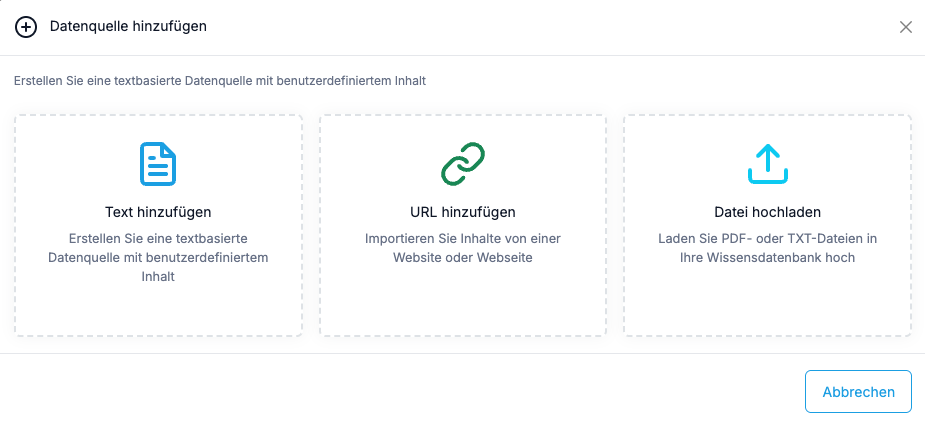
**How to connect a data source to your voice agent:**
1. Go to **Voice Wizard** -> **Knowledge Base** tab
2. Find the desired data source in the list
3. Enable the **toggle switch** next to the data source
4. The context is automatically appended to the end of your main prompt, formatted as follows:
```
## Knowledge Base Context:
### Source (File): FAQ.pdf
[Content of FAQ.pdf]
### Source (URL): https://example.com/products
[Content of the website]
### Source (Text): Company information
[Manually entered text]
```
This formatted context is automatically appended to the end of your main prompt and thus becomes part of the instruction sent to the AI.
## Token limits & recommendations
**What are tokens?**
Tokens are the units in which AI models process text. One token corresponds approximately to:
* \~1.5 tokens per German word
* \~1.3 tokens per English word
* **Example:** 6,000 German words = approx. 9,000 tokens (roughly)
*Important:* The token calculation is an **approximation** and not exact. It serves as a guideline.
### Recommended limit: \~9,000 tokens
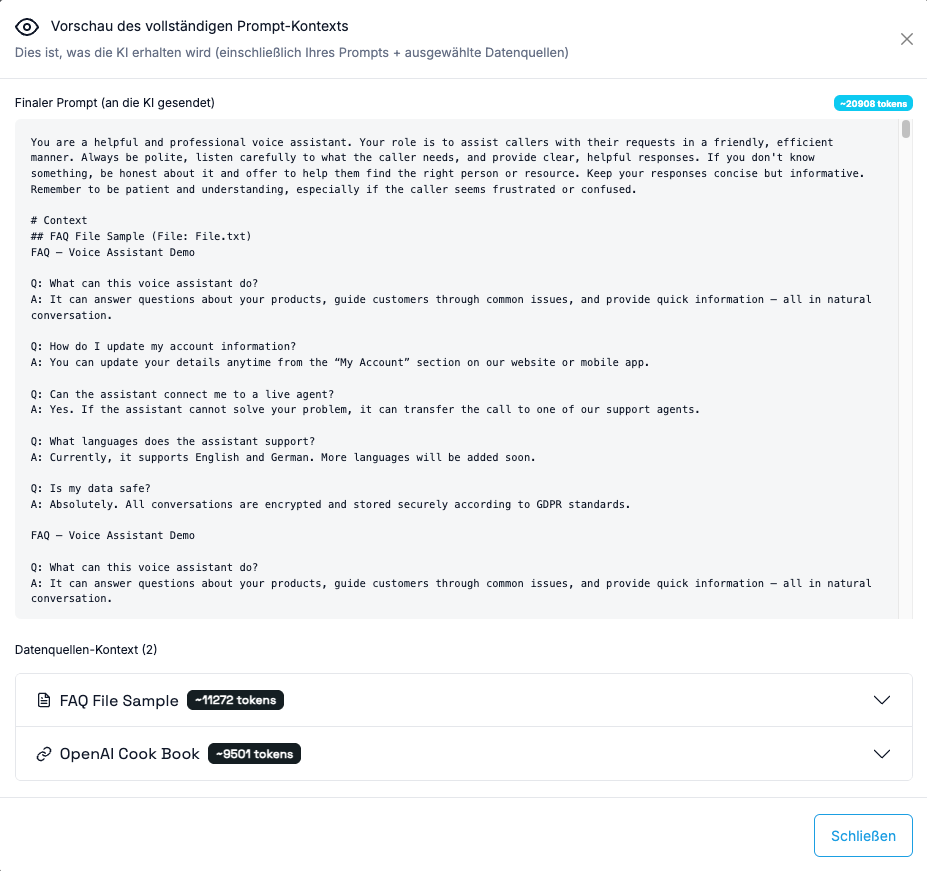
If your **main prompt** (the base prompt you wrote) together with all **activated data sources** exceeds roughly **9,000 tokens**, a **yellow warning** appears in the Voice Wizard.
### Recommended upper limit: \~12,000 tokens
Above **12,000 tokens**, a **red warning** appears.
**Why these limits?**
* With too much context, the AI may struggle to process all information correctly
* **Response quality can degrade** -- the AI might provide inaccurate or irrelevant information
* In extreme cases the AI may start to "hallucinate" (invent false information)
* These limits are based on our experience for **optimal results** and precise answers
**Important to understand:**
* These are **recommendations**, not hard technical limits
* You decide for yourself how many data sources you want to activate
* The warnings serve as a **guideline** for best results
* To safeguard response quality, you are prevented from uploading individual data sources that already exceed the red limit on their own
* **Note:** The token limits (9,000 / 12,000) are configurable if needed -- contact us if you require individual adjustments
### Best practices for optimal results
| | Recommendation |
| --------- | --------------------------------------------------------------------------- |
| **Do** | Use **well-structured documents** with clear headings and paragraphs |
| **Do** | Remove **redundant information** from your data sources |
| **Do** | Check the **token warnings regularly**, especially after adding new sources |
| **Do** | Activate only **relevant data sources** for each agent |
| **Don't** | Don't upload low-quality/unreadable PDFs |
| **Don't** | Don't activate all data sources at once if not necessary |
## Activating data sources for voice agents
**How to connect a data source to your voice agent:**
1. Go to **Voice Wizard** -> **Knowledge Base** tab
2. Find the desired data source in the list
3. Enable the **toggle switch** next to the data source
4. The context is automatically appended to the end of your main prompt, formatted as follows:
```
## Knowledge Base Context:
### Source (File): FAQ.pdf
[Content of FAQ.pdf]
### Source (URL): https://example.com/products
[Content of the website]
### Source (Text): Company information
[Manually entered text]
```
This formatted context is automatically appended to the end of your main prompt and thus becomes part of the instruction sent to the AI.
## Token limits & recommendations
**What are tokens?**
Tokens are the units in which AI models process text. One token corresponds approximately to:
* \~1.5 tokens per German word
* \~1.3 tokens per English word
* **Example:** 6,000 German words = approx. 9,000 tokens (roughly)
*Important:* The token calculation is an **approximation** and not exact. It serves as a guideline.
### Recommended limit: \~9,000 tokens
If your **main prompt** (the base prompt you wrote) together with all **activated data sources** exceeds roughly **9,000 tokens**, a **yellow warning** appears in the Voice Wizard.
### Recommended upper limit: \~12,000 tokens
Above **12,000 tokens**, a **red warning** appears.
**Why these limits?**
* With too much context, the AI may struggle to process all information correctly
* **Response quality can degrade** -- the AI might provide inaccurate or irrelevant information
* In extreme cases the AI may start to "hallucinate" (invent false information)
* These limits are based on our experience for **optimal results** and precise answers
**Important to understand:**
* These are **recommendations**, not hard technical limits
* You decide for yourself how many data sources you want to activate
* The warnings serve as a **guideline** for best results
* To safeguard response quality, you are prevented from uploading individual data sources that already exceed the red limit on their own
* **Note:** The token limits (9,000 / 12,000) are configurable if needed -- contact us if you require individual adjustments
### Best practices for optimal results
| | Recommendation |
| --------- | --------------------------------------------------------------------------- |
| **Do** | Use **well-structured documents** with clear headings and paragraphs |
| **Do** | Remove **redundant information** from your data sources |
| **Do** | Check the **token warnings regularly**, especially after adding new sources |
| **Do** | Activate only **relevant data sources** for each agent |
| **Don't** | Don't upload low-quality/unreadable PDFs |
| **Don't** | Don't activate all data sources at once if not necessary |

 ## Prompt preview
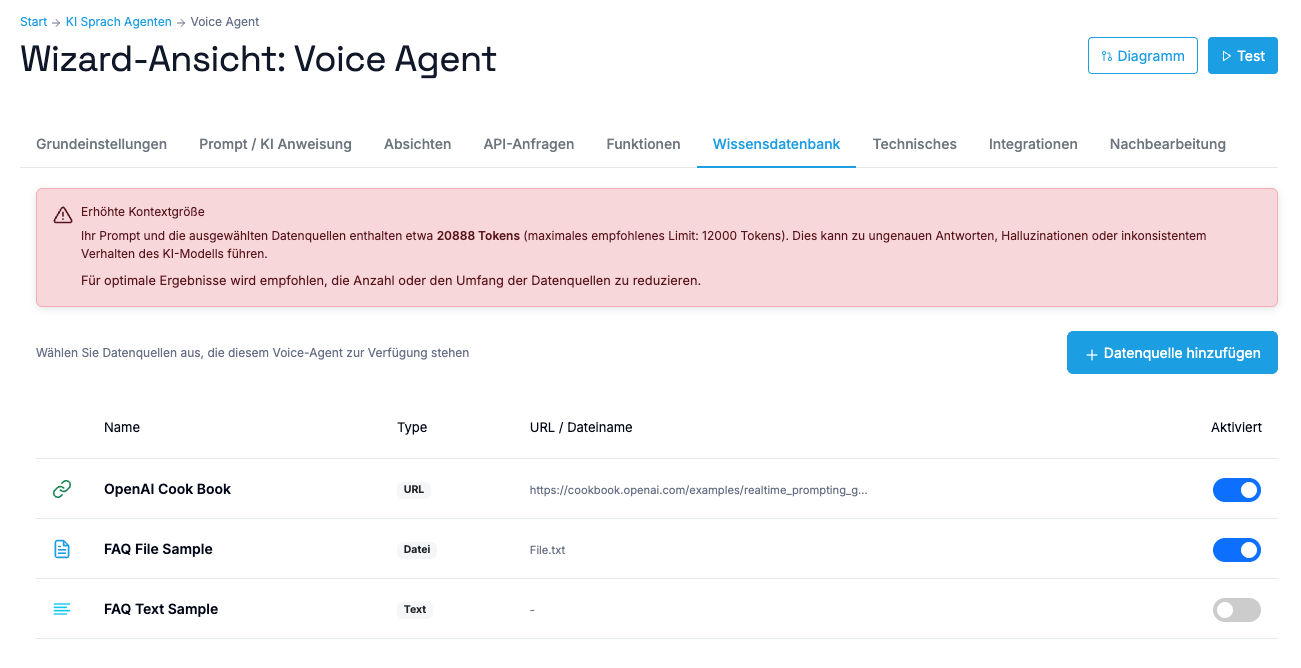
**New feature:** You can now display the **complete prompt including all activated data sources**.
**How it works:**
1. In the Voice Wizard -> prompt section
2. Click the **"Preview"** button
3. A modal window shows the complete context that is sent to the AI
**Important:** The preview only shows data sources that were activated via the toggle switch. The old `%%context:name%%` syntax is **not** shown in the preview.
## Prompt preview
**New feature:** You can now display the **complete prompt including all activated data sources**.
**How it works:**
1. In the Voice Wizard -> prompt section
2. Click the **"Preview"** button
3. A modal window shows the complete context that is sent to the AI
**Important:** The preview only shows data sources that were activated via the toggle switch. The old `%%context:name%%` syntax is **not** shown in the preview.
 ## Important: Change to data source integration
**Important change for existing users**
We have fundamentally reworked the way knowledge sources are integrated into voice agents.
### Old (being discontinued):
```
Du bist ein Kundenberater.
%%context:faq%%
%%context:produktinfo%%
Beantworte Fragen präzise.
```
### New (recommended):
Use the **Knowledge Base tab** in the Voice Wizard with toggle-based activation.
### Timeline
| Period | Status |
| ------------------------- | ------------------------------------------------------------------------------------------------------------------------------------------------ |
| **October 2025** | Already implemented: The hints for `%%context:name%%` were removed from the Prompt Builder. You no longer see this syntax in the user interface. |
| **Now - Nov 1, 2025** | Transition phase: The old `%%context:name%%` syntax still works on the backend. Your existing prompts continue to work normally. |
| **From November 1, 2025** | Shutdown: The `%%context:name%%` syntax will be fully deactivated. Please migrate your prompts before this date! |
### Migration in 3 simple steps
Go to **Knowledge Base** in the left navigation and review your existing data sources. If you previously used `%%context:faq%%`, you should find a data source named "faq".
Remove **all** `%%context:...%%` placeholders from your prompt.
**Before:**
```
Du bist ein Kundenservice-Agent.
%%context:faq%%
%%context:produktinfo%%
Beantworte Kundenfragen präzise und freundlich.
```
**After:**
```
Du bist ein Kundenservice-Agent.
Beantworte Kundenfragen präzise und freundlich.
```
Go to **Voice Wizard** -> **Knowledge Base** tab and activate the desired data sources with the toggle switch (on/off).
**Important: Avoid duplicates!**
Use **either** the old `%%context:...%%` method **or** the new toggle method -- not both at the same time! If you combine both methods, the data sources are inserted into the prompt twice, which leads to worse results.
### Benefits of the new method
| Benefit | Description |
| -------------------- | ------------------------------------------------------- |
| **Token monitoring** | Real-time warnings when the context grows large |
| **Preview** | See exactly what is sent to the AI |
| **Flexibility** | Activate/deactivate sources without changing the prompt |
| **Cleanliness** | No more "magic syntax" in the prompt |
## Frequently asked questions
The upload is rejected if one of the following conditions is exceeded:
* **File size:** More than 15 MB
* **Extracted text content:** Too much text for a single data source (roughly more than 20-30 pages of text)
This safeguards the performance and response quality of your voice agents. Data sources that are too large would already exceed the recommended token limits on their own.
**Solution:** Check whether all the information in the document is really relevant for your voice agent. If necessary, create several specialized data sources containing only the most important information for different use cases.
Yes, you can upload PDFs with images. The system automatically extracts the **existing text** from the PDF.
**Important to note:**
* Only **real text** is extracted from the PDF (e.g. text created with a text editor)
* Text that is only **embedded as an image in the PDF** (e.g. scanned pages without OCR) **cannot** be read
* Images themselves are not processed -- only the text is used
**Solution if you run into problems:** If your PDF consists mainly of scanned images, use an OCR tool (text recognition) to convert the PDF into a searchable PDF with extractable text.
The agent receives a large amount of context at once, and **response quality can degrade**. The AI may struggle to find the most relevant information and answer precisely.
Pay attention to the token warnings and consider whether all activated data sources are really necessary for the agent's current task.
All uploaded data sources are stored centrally for your entire tenant (account) and are visible to all users in your account.
The files and data are stored on **servers in the EU** and are subject to European data protection regulations (GDPR).
All existing data sources are still available in the **Knowledge Base**. They just need to be activated in the Voice Wizard via the toggle switch instead of being referenced in the prompt.
Yes, there are two ways:
* **In the Voice Wizard -> Knowledge Base tab:** All activated data sources have their toggle switch set to "ON"
* **Prompt preview:** Shows the complete context with all activated data sources, exactly as it is sent to the AI
*Note:* The preview only shows data sources activated via the new toggle method.
Use the prompt preview to understand what your final prompt looks like with all data sources. This helps you spot redundancies and optimize quality!
## Important: Change to data source integration
**Important change for existing users**
We have fundamentally reworked the way knowledge sources are integrated into voice agents.
### Old (being discontinued):
```
Du bist ein Kundenberater.
%%context:faq%%
%%context:produktinfo%%
Beantworte Fragen präzise.
```
### New (recommended):
Use the **Knowledge Base tab** in the Voice Wizard with toggle-based activation.
### Timeline
| Period | Status |
| ------------------------- | ------------------------------------------------------------------------------------------------------------------------------------------------ |
| **October 2025** | Already implemented: The hints for `%%context:name%%` were removed from the Prompt Builder. You no longer see this syntax in the user interface. |
| **Now - Nov 1, 2025** | Transition phase: The old `%%context:name%%` syntax still works on the backend. Your existing prompts continue to work normally. |
| **From November 1, 2025** | Shutdown: The `%%context:name%%` syntax will be fully deactivated. Please migrate your prompts before this date! |
### Migration in 3 simple steps
Go to **Knowledge Base** in the left navigation and review your existing data sources. If you previously used `%%context:faq%%`, you should find a data source named "faq".
Remove **all** `%%context:...%%` placeholders from your prompt.
**Before:**
```
Du bist ein Kundenservice-Agent.
%%context:faq%%
%%context:produktinfo%%
Beantworte Kundenfragen präzise und freundlich.
```
**After:**
```
Du bist ein Kundenservice-Agent.
Beantworte Kundenfragen präzise und freundlich.
```
Go to **Voice Wizard** -> **Knowledge Base** tab and activate the desired data sources with the toggle switch (on/off).
**Important: Avoid duplicates!**
Use **either** the old `%%context:...%%` method **or** the new toggle method -- not both at the same time! If you combine both methods, the data sources are inserted into the prompt twice, which leads to worse results.
### Benefits of the new method
| Benefit | Description |
| -------------------- | ------------------------------------------------------- |
| **Token monitoring** | Real-time warnings when the context grows large |
| **Preview** | See exactly what is sent to the AI |
| **Flexibility** | Activate/deactivate sources without changing the prompt |
| **Cleanliness** | No more "magic syntax" in the prompt |
## Frequently asked questions
The upload is rejected if one of the following conditions is exceeded:
* **File size:** More than 15 MB
* **Extracted text content:** Too much text for a single data source (roughly more than 20-30 pages of text)
This safeguards the performance and response quality of your voice agents. Data sources that are too large would already exceed the recommended token limits on their own.
**Solution:** Check whether all the information in the document is really relevant for your voice agent. If necessary, create several specialized data sources containing only the most important information for different use cases.
Yes, you can upload PDFs with images. The system automatically extracts the **existing text** from the PDF.
**Important to note:**
* Only **real text** is extracted from the PDF (e.g. text created with a text editor)
* Text that is only **embedded as an image in the PDF** (e.g. scanned pages without OCR) **cannot** be read
* Images themselves are not processed -- only the text is used
**Solution if you run into problems:** If your PDF consists mainly of scanned images, use an OCR tool (text recognition) to convert the PDF into a searchable PDF with extractable text.
The agent receives a large amount of context at once, and **response quality can degrade**. The AI may struggle to find the most relevant information and answer precisely.
Pay attention to the token warnings and consider whether all activated data sources are really necessary for the agent's current task.
All uploaded data sources are stored centrally for your entire tenant (account) and are visible to all users in your account.
The files and data are stored on **servers in the EU** and are subject to European data protection regulations (GDPR).
All existing data sources are still available in the **Knowledge Base**. They just need to be activated in the Voice Wizard via the toggle switch instead of being referenced in the prompt.
Yes, there are two ways:
* **In the Voice Wizard -> Knowledge Base tab:** All activated data sources have their toggle switch set to "ON"
* **Prompt preview:** Shows the complete context with all activated data sources, exactly as it is sent to the AI
*Note:* The preview only shows data sources activated via the new toggle method.
Use the prompt preview to understand what your final prompt looks like with all data sources. This helps you spot redundancies and optimize quality!