> ## Documentation Index
> Fetch the complete documentation index at: https://aipro.placetel.de/docs/llms.txt
> Use this file to discover all available pages before exploring further.
# Live Monitoring
> Follow your Voice Agents' calls in real time, take them over, or answer them in the browser.
## What is Live Monitoring?
With **Live Monitoring**, you can keep an eye on your Voice Agents' calls in real time. See at a glance which conversations are currently in progress, follow them live, and step in whenever needed -- all directly in your browser.
Three things you can do:
* **Follow a conversation live** -- read the ongoing call as a live transcript.
* **Take over a call** -- step into an ongoing conversation and continue it yourself.
* **Send calls to the browser queue** -- have your team answer callers directly in the browser instead of routing them to a phone number.
## Following a call's live transcript
While a Voice Agent is on a call, you can **read along in real time**. During an active call, open **Watch transcript** -- the live transcript updates line by line as the conversation happens. This lets you see immediately how your Voice Agent is responding to a request, and step in if needed.
Watching a call requires **no setup** and is available for every Voice Agent.
**Note:** For Voice Agents set to **Zero retention** or **Zero retention after post-processing**, no live transcript is shown, since no transcripts are stored for these Voice Agents. You can still take over the call. Learn more: [Transcript Retention](/docs/en/transcript-retention).
## Taking over a call
Sometimes a caller would rather speak with a person -- or you want to step in yourself. **Join call** lets you take over the call and continue the conversation yourself from that point on, directly in your browser.
You can take over both an **ongoing call** and a caller who is already **waiting in the queue** for an employee.
## Sending calls to the browser queue
Instead of forwarding a call to an external **phone number**, your Voice Agent can send it to the **browser queue**. The caller then waits in the **queue**, and an available employee answers the call **directly in the browser** -- no forwarding to a separate phone required. This lets several employees answer calls from one central place without setting up additional phones.
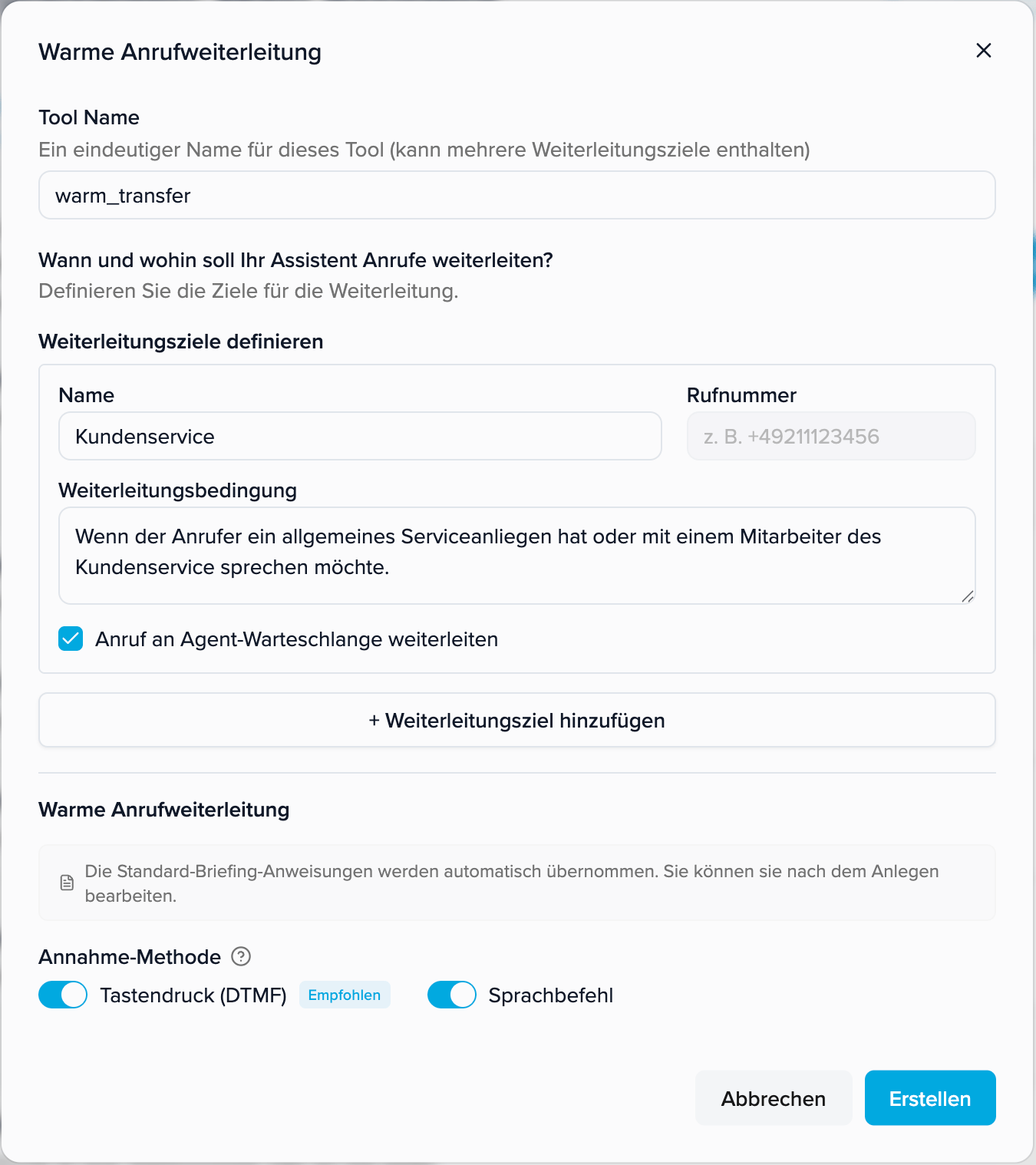
You set up the handover to the queue in **Warm Transfer**. There, for each target, you decide whether a call goes to a phone number or to the browser queue:
1. Open **Edit assistant → Tools → Warm Transfer** (or add the tool).
2. Under **Define transfer targets**, create a target: a **Name** (e.g. "Customer Service") and a **Forwarding Condition** that tells your Voice Agent when to hand off to this target.
3. Check **"Forward call to agent queue"**. A phone number isn't required in this case -- the call goes to the browser queue instead.
4. Calls for this target now appear in the **Queue** in Live Monitoring, where an employee can answer them in the browser.
 For more on Warm Transfer, see [Warm Transfer](/docs/en/warm-transfer).
## Opening Live Monitoring
1. In the menu, open **Live monitoring**.
2. Select the Voice Agent you want to watch.
3. The console opens and shows that Voice Agent's current calls.
The console has three sections:
* **Active AI calls** -- calls your Voice Agent is currently handling.
* **Queue** -- callers waiting to be taken over by an employee.
* **Recent conversations** -- recently ended calls, for a quick look back.
Only **one Voice Agent at a time** can be monitored per account.
## Frequently asked questions
### What's the difference between "Watch transcript" and "Join call"?
With **Watch transcript**, you only read along with the conversation. With **Join call**, you take over the call and speak with the caller yourself.
### Can I see completed calls in Live Monitoring?
No. Live Monitoring shows calls that are currently in progress. You'll find completed conversations in your **call history**.
For more on Warm Transfer, see [Warm Transfer](/docs/en/warm-transfer).
## Opening Live Monitoring
1. In the menu, open **Live monitoring**.
2. Select the Voice Agent you want to watch.
3. The console opens and shows that Voice Agent's current calls.
The console has three sections:
* **Active AI calls** -- calls your Voice Agent is currently handling.
* **Queue** -- callers waiting to be taken over by an employee.
* **Recent conversations** -- recently ended calls, for a quick look back.
Only **one Voice Agent at a time** can be monitored per account.
## Frequently asked questions
### What's the difference between "Watch transcript" and "Join call"?
With **Watch transcript**, you only read along with the conversation. With **Join call**, you take over the call and speak with the caller yourself.
### Can I see completed calls in Live Monitoring?
No. Live Monitoring shows calls that are currently in progress. You'll find completed conversations in your **call history**.