> ## Documentation Index
> Fetch the complete documentation index at: https://aipro.placetel.de/docs/llms.txt
> Use this file to discover all available pages before exploring further.
# Custom MCP Server
> Connect your own MCP server -- discover the tools it provides and add them to your voice agent as tools.
## Overview
The **[Model Context Protocol (MCP)](https://modelcontextprotocol.io/docs/getting-started/intro)** is a standardized way to make external tools available to an AI. With the **custom MCP server integration**, you connect your own MCP server (via HTTP / streamable transport) and make the tools this server provides available as tools for your voice agent.
Unlike the fixed calendar integrations (e.g. Outlook or Calendly), there is **no fixed tool list** here: which tools are available depends entirely on the connected server. You enter the server address, have the available tools discovered automatically, and select the ones you want.
**Beta -- execution during calls:** **Connecting** a server, **discovering** its tools, and **adding** them to the tool list already work. **Executing these tools during a live call** is still in preparation and **coming soon**. So you can already set up the integration; the actual invocation by the voice agent during a conversation will follow.
**Security:** The credentials you enter are stored encrypted on the server and are only accessible to your account. Only enter the server address and any token if you trust the server.
## Setting up the integration
1. Open the **Tools** page in the sidebar
2. Click **Create tool** and select **MCP Server**
3. **Connection step (step 1 of 3):** Fill in the connection details:
* **Name** -- freely choosable. Only used for identification and later appears as a label on the tools in the tool list
* **Server URL** -- the address of your MCP server
* **Authentication** -- **None**, **Bearer token**, or **Custom header**. With **Bearer token** you additionally enter the **token**; with **Custom header** a **header name** and a **header value**
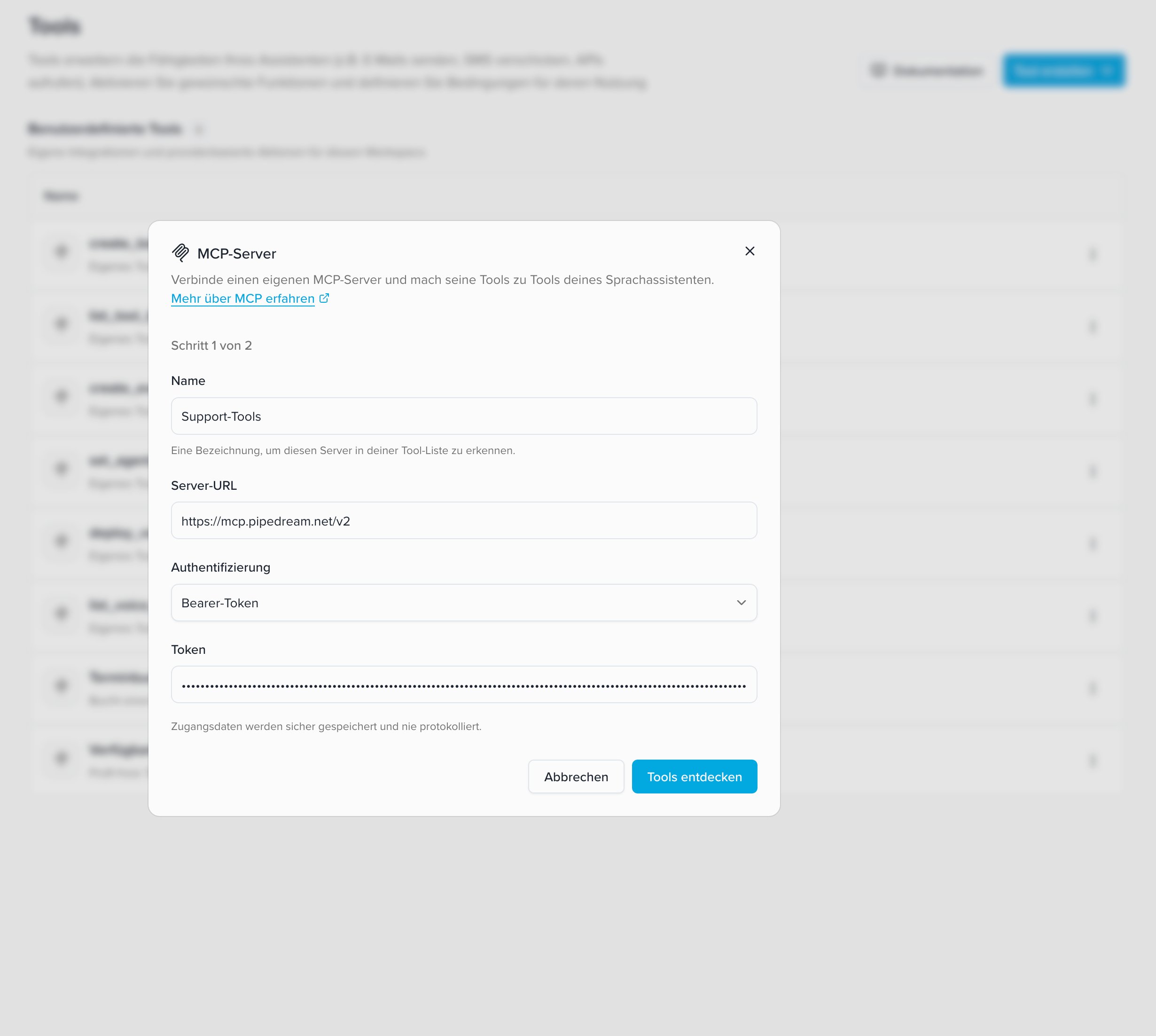 **Important -- enter the full endpoint URL:** Enter the **complete MCP endpoint URL including the path** (e.g. `https://ihr-server.de/v1/mcp/core`). The bare base URL (e.g. `https://ihr-server.de`) usually does **not** work and leads to **"no tools found"**. The exact path varies by server -- check the documentation of your MCP server.
4. Click **Discover tools**. The server is queried (`tools/list`) and the available tools are loaded
5. **Selection step (step 2 of 3):** Select the tools you want from the list of discovered tools. Multiple selection is possible; with **Select all** you select the entire (filtered) list. Use the search field to narrow down the list; use the arrow on each tool to expand its parameters. Then click **Next**
**Important -- enter the full endpoint URL:** Enter the **complete MCP endpoint URL including the path** (e.g. `https://ihr-server.de/v1/mcp/core`). The bare base URL (e.g. `https://ihr-server.de`) usually does **not** work and leads to **"no tools found"**. The exact path varies by server -- check the documentation of your MCP server.
4. Click **Discover tools**. The server is queried (`tools/list`) and the available tools are loaded
5. **Selection step (step 2 of 3):** Select the tools you want from the list of discovered tools. Multiple selection is possible; with **Select all** you select the entire (filtered) list. Use the search field to narrow down the list; use the arrow on each tool to expand its parameters. Then click **Next**
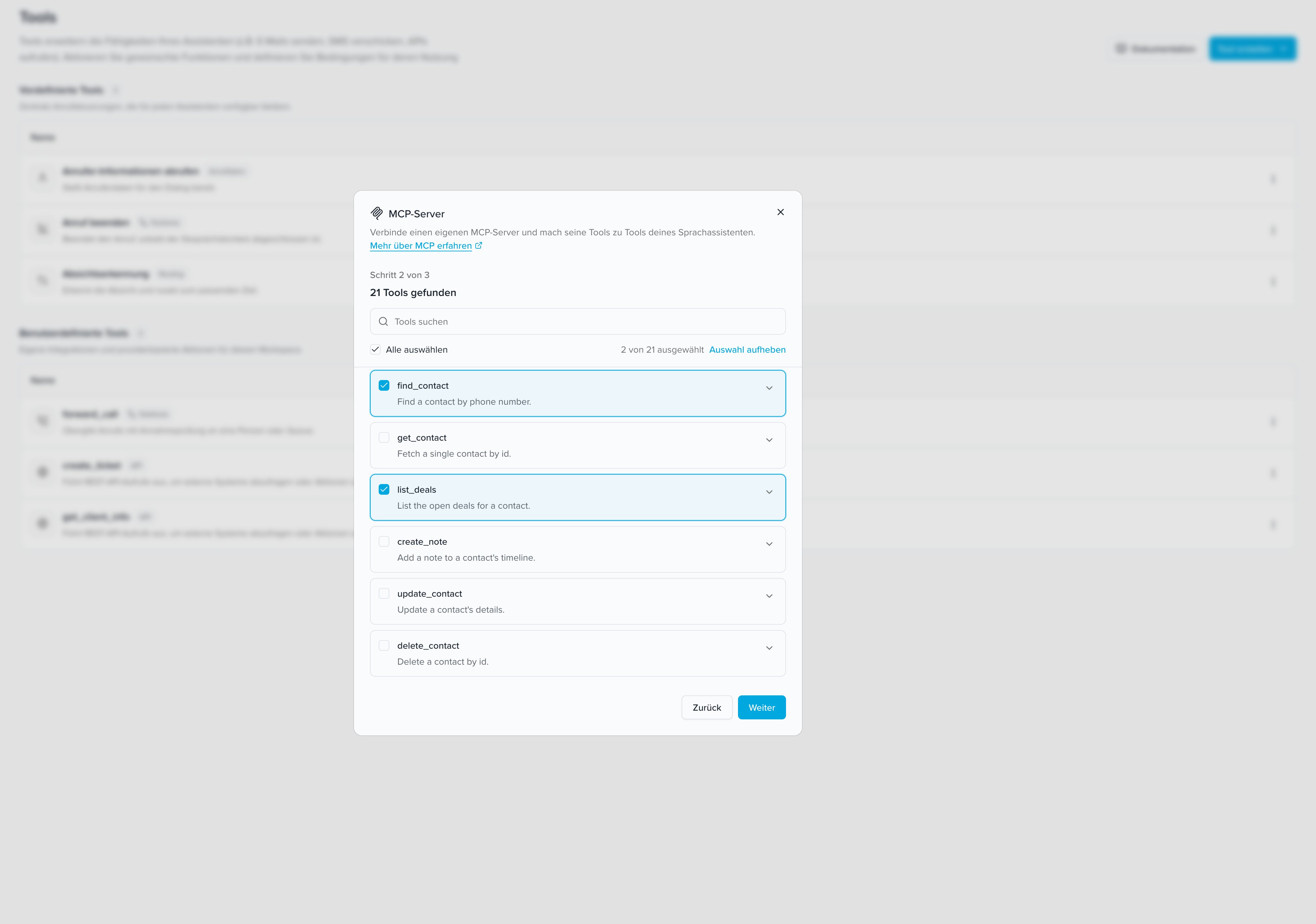 6. **Review step (step 3 of 3):** Review your selection once more and confirm with **Add N tools**
7. The selected tools then appear in the **tool list** -- marked with an **MCP icon** and a **badge with the name you assigned** to the server. From there they are available globally like all tools and can be assigned to a voice agent
8. Open the voice agent you want and switch to the **Tools** tab. There, enable the desired MCP tool for this agent
**Shared tools:** Like all tools, MCP tools are available globally once created. You only need to enable them per voice agent in the **Tools** tab. Learn more at [Tools](/docs/en/tools).
**Already existing tools:** Tools whose name already exists as a tool in your account are skipped when adding. In the results list they are marked as **added** and cannot be selected again.
## Available tools
Unlike Outlook with its two fixed tools, MCP tools are **discovered dynamically from the server**. The available tools are therefore **server-specific** -- there is no fixed list that applies to everyone.
Each discovered tool shows a **name** and a **description** from the server; the parameter view additionally shows the individual input fields (name, type, and whether they are required). Only select the tools your agent actually needs.
### Example
The following excerpt is **illustrative only** and comes from a simple CRM (customer management) -- a typical integration, for instance to identify callers by their phone number and leave a call note. Which tools **your** server provides is only visible after clicking **Discover tools**.
| Tool (example) | Description (example) |
| ---------------- | ----------------------------------------------- |
| `find_contact` | Finds a contact by phone number (read-only) |
| `get_contact` | Retrieves a single contact (read-only) |
| `list_deals` | Lists a contact's open deals (read-only) |
| `create_note` | Adds a note to the contact timeline (modifying) |
| `update_contact` | Changes the contact details (modifying) |
| `delete_contact` | Deletes a contact (destructive) |
## Prompting notes / security
### Only select the tools you need
Deliberately select only the tools the agent really needs.
**Modifying and destructive tools:** Some MCP tools **modify or delete data** -- often recognizable by names like `delete_…`, `update_…`, or `create_…`. If you add such a tool, the agent can in principle trigger that action. Proceed carefully here and prefer -- where possible -- **read-only** tools (e.g. `list_…`, `get_…`).
### Suitability for phone conversations
Not every tool is suitable for a voice call:
* Tools that expect **IDs or codes** the caller would have to dictate work poorly over the phone.
* Tools that return **large amounts of data** can hardly be read out loud in a useful way.
* Prefer **simple queries and actions** with few, clear parameters.
### Authentication
* **Bearer token:** The header `Authorization: Bearer ` is sent.
* **Custom header:** The entered value is sent under the header name you specified (e.g. `X-API-Key: `).
* **None:** No credentials are sent.
### Troubleshooting
| Problem | Possible cause & solution |
| ----------------------- | ---------------------------------------------------------------------------------------------------------------------------------------------------- |
| **"no tools found"** | Wrong or incomplete server URL (the **path is missing**) or wrong authentication. Check the full endpoint URL including the path and the credentials |
| **404 from the server** | The specified endpoint path does not exist. Correct the path according to your MCP server's documentation |
| **Connection failed** | Server unreachable or credentials invalid. Check the URL, reachability, and authentication |
6. **Review step (step 3 of 3):** Review your selection once more and confirm with **Add N tools**
7. The selected tools then appear in the **tool list** -- marked with an **MCP icon** and a **badge with the name you assigned** to the server. From there they are available globally like all tools and can be assigned to a voice agent
8. Open the voice agent you want and switch to the **Tools** tab. There, enable the desired MCP tool for this agent
**Shared tools:** Like all tools, MCP tools are available globally once created. You only need to enable them per voice agent in the **Tools** tab. Learn more at [Tools](/docs/en/tools).
**Already existing tools:** Tools whose name already exists as a tool in your account are skipped when adding. In the results list they are marked as **added** and cannot be selected again.
## Available tools
Unlike Outlook with its two fixed tools, MCP tools are **discovered dynamically from the server**. The available tools are therefore **server-specific** -- there is no fixed list that applies to everyone.
Each discovered tool shows a **name** and a **description** from the server; the parameter view additionally shows the individual input fields (name, type, and whether they are required). Only select the tools your agent actually needs.
### Example
The following excerpt is **illustrative only** and comes from a simple CRM (customer management) -- a typical integration, for instance to identify callers by their phone number and leave a call note. Which tools **your** server provides is only visible after clicking **Discover tools**.
| Tool (example) | Description (example) |
| ---------------- | ----------------------------------------------- |
| `find_contact` | Finds a contact by phone number (read-only) |
| `get_contact` | Retrieves a single contact (read-only) |
| `list_deals` | Lists a contact's open deals (read-only) |
| `create_note` | Adds a note to the contact timeline (modifying) |
| `update_contact` | Changes the contact details (modifying) |
| `delete_contact` | Deletes a contact (destructive) |
## Prompting notes / security
### Only select the tools you need
Deliberately select only the tools the agent really needs.
**Modifying and destructive tools:** Some MCP tools **modify or delete data** -- often recognizable by names like `delete_…`, `update_…`, or `create_…`. If you add such a tool, the agent can in principle trigger that action. Proceed carefully here and prefer -- where possible -- **read-only** tools (e.g. `list_…`, `get_…`).
### Suitability for phone conversations
Not every tool is suitable for a voice call:
* Tools that expect **IDs or codes** the caller would have to dictate work poorly over the phone.
* Tools that return **large amounts of data** can hardly be read out loud in a useful way.
* Prefer **simple queries and actions** with few, clear parameters.
### Authentication
* **Bearer token:** The header `Authorization: Bearer ` is sent.
* **Custom header:** The entered value is sent under the header name you specified (e.g. `X-API-Key: `).
* **None:** No credentials are sent.
### Troubleshooting
| Problem | Possible cause & solution |
| ----------------------- | ---------------------------------------------------------------------------------------------------------------------------------------------------- |
| **"no tools found"** | Wrong or incomplete server URL (the **path is missing**) or wrong authentication. Check the full endpoint URL including the path and the credentials |
| **404 from the server** | The specified endpoint path does not exist. Correct the path according to your MCP server's documentation |
| **Connection failed** | Server unreachable or credentials invalid. Check the URL, reachability, and authentication |