> ## Documentation Index
> Fetch the complete documentation index at: https://aipro.placetel.de/docs/llms.txt
> Use this file to discover all available pages before exploring further.
# Connecting WhatsApp
> Connect a WhatsApp Business number so your AI assistant answers messages on WhatsApp.
# Connecting WhatsApp
## Overview
On the **WhatsApp** page you connect a **WhatsApp Business number** to Placetel. Once a number is connected, an AI assistant can answer the incoming WhatsApp messages from your customers.
There are **two ways** to add a number:
* **Import (recommended):** connect your number in a few clicks via Meta. Meta guides you through signing in and selecting your account and number - you don't have to copy any IDs by hand.
* **Add manually:** enter the credentials (phone number ID, WABA ID, and an access token) yourself. Suitable if you already manage your WhatsApp Business account in Meta Business Manager.
## Prerequisites
* A **Meta Business account** (Facebook Business).
* A **WhatsApp Business account (WABA)** within that Meta account.
* A **phone number** that is **not** already linked to a regular WhatsApp or WhatsApp Business app (consumer app). See [Choosing a number](#choosing-a-number).
* For production use, Meta may require a **verified business identity** and a **payment method** on the WhatsApp Business account.
Don't have a WhatsApp Business account yet? You can create one directly at Meta during the **import**. Meta's wizard walks you through the setup step by step.
## Adding a number
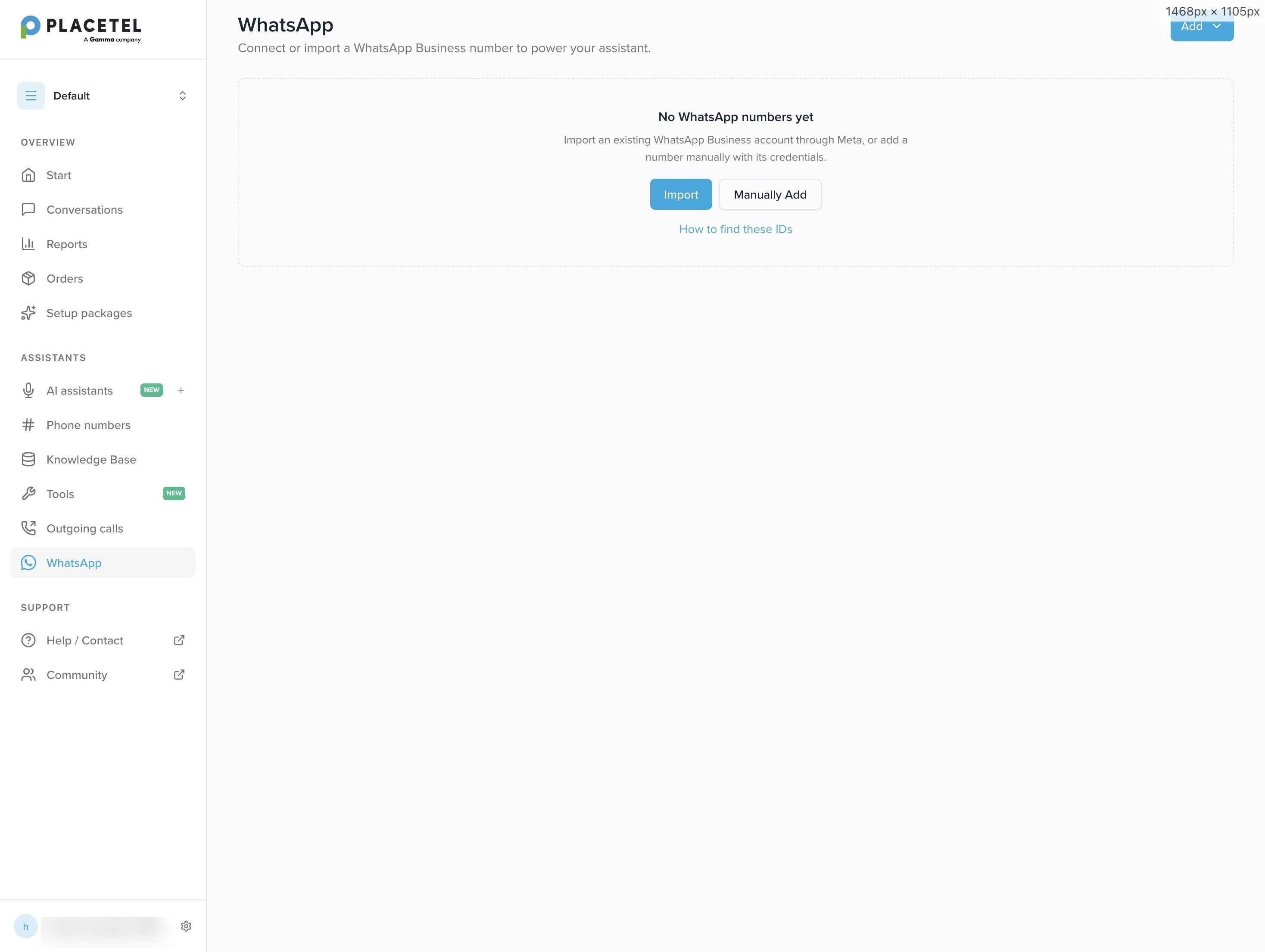
Open **WhatsApp** in the sidebar. While no number is connected yet, you see the two options directly; once numbers exist, you find them under **Add** in the top right. Either way, you choose between **Import** and **Manually Add**.
 ## Method 1 - Import (recommended)
With the import, you connect your number through Meta's **Embedded Signup** - a Meta window that guides you securely through the whole process. At the end, Meta hands the credentials (phone number ID, WABA ID, and token) to Placetel automatically; you don't enter anything by hand.
Click **Add → Import**. A Meta window opens.
Sign in with the Facebook/Meta account that manages your business, then select your **Business Portfolio** - the Meta business account that owns your WhatsApp assets (formerly "Business Manager"). If you don't have one yet, create it in about a minute: business name and a valid contact email (not a throwaway address).
Choose an existing **WhatsApp Business account (WABA)** or create a new one with your business details - your business **category**, **website**, and **time zone**.
Decide how to provide a number: use a **display name only** (test number) or a **new or existing WhatsApp number**. See [Number options during import](#number-options-during-import).
Confirm the permissions Meta requests. The number then appears in the list on the WhatsApp page.
### Number options during import
During the import, Meta offers **two ways** to provide a number:
| Option | What you get | Best for |
| :---------------------------------- | :--------------------------------------------------------------------- | :----------------------------------- |
| **Display name only** | A free **test number** from Meta (**555** prefix), available instantly | Quickly trying the assistant in chat |
| **New or existing WhatsApp number** | Your real business number, connected or migrated to Meta | Production use |
* **Display name only:** you provide just a display name and Meta gives you a free test number with the **555** prefix. This is the fastest way to run a chat demo. However, it is a **test number - not intended for production use**.
* **New or existing WhatsApp number:** you connect a real number. For which numbers are eligible and what to watch out for, see [Choosing a number](#choosing-a-number).
Import is the fastest and least error-prone path, because Meta transfers the phone number ID, the WABA ID, and the token for you.
## Method 2 - Add manually
Use this path if you have already set up your WhatsApp Business account in **Meta Business Manager** and want to enter the credentials yourself.
Click **Add**, choose **Manually Add**, and fill in the dialog.
## Method 1 - Import (recommended)
With the import, you connect your number through Meta's **Embedded Signup** - a Meta window that guides you securely through the whole process. At the end, Meta hands the credentials (phone number ID, WABA ID, and token) to Placetel automatically; you don't enter anything by hand.
Click **Add → Import**. A Meta window opens.
Sign in with the Facebook/Meta account that manages your business, then select your **Business Portfolio** - the Meta business account that owns your WhatsApp assets (formerly "Business Manager"). If you don't have one yet, create it in about a minute: business name and a valid contact email (not a throwaway address).
Choose an existing **WhatsApp Business account (WABA)** or create a new one with your business details - your business **category**, **website**, and **time zone**.
Decide how to provide a number: use a **display name only** (test number) or a **new or existing WhatsApp number**. See [Number options during import](#number-options-during-import).
Confirm the permissions Meta requests. The number then appears in the list on the WhatsApp page.
### Number options during import
During the import, Meta offers **two ways** to provide a number:
| Option | What you get | Best for |
| :---------------------------------- | :--------------------------------------------------------------------- | :----------------------------------- |
| **Display name only** | A free **test number** from Meta (**555** prefix), available instantly | Quickly trying the assistant in chat |
| **New or existing WhatsApp number** | Your real business number, connected or migrated to Meta | Production use |
* **Display name only:** you provide just a display name and Meta gives you a free test number with the **555** prefix. This is the fastest way to run a chat demo. However, it is a **test number - not intended for production use**.
* **New or existing WhatsApp number:** you connect a real number. For which numbers are eligible and what to watch out for, see [Choosing a number](#choosing-a-number).
Import is the fastest and least error-prone path, because Meta transfers the phone number ID, the WABA ID, and the token for you.
## Method 2 - Add manually
Use this path if you have already set up your WhatsApp Business account in **Meta Business Manager** and want to enter the credentials yourself.
Click **Add**, choose **Manually Add**, and fill in the dialog.
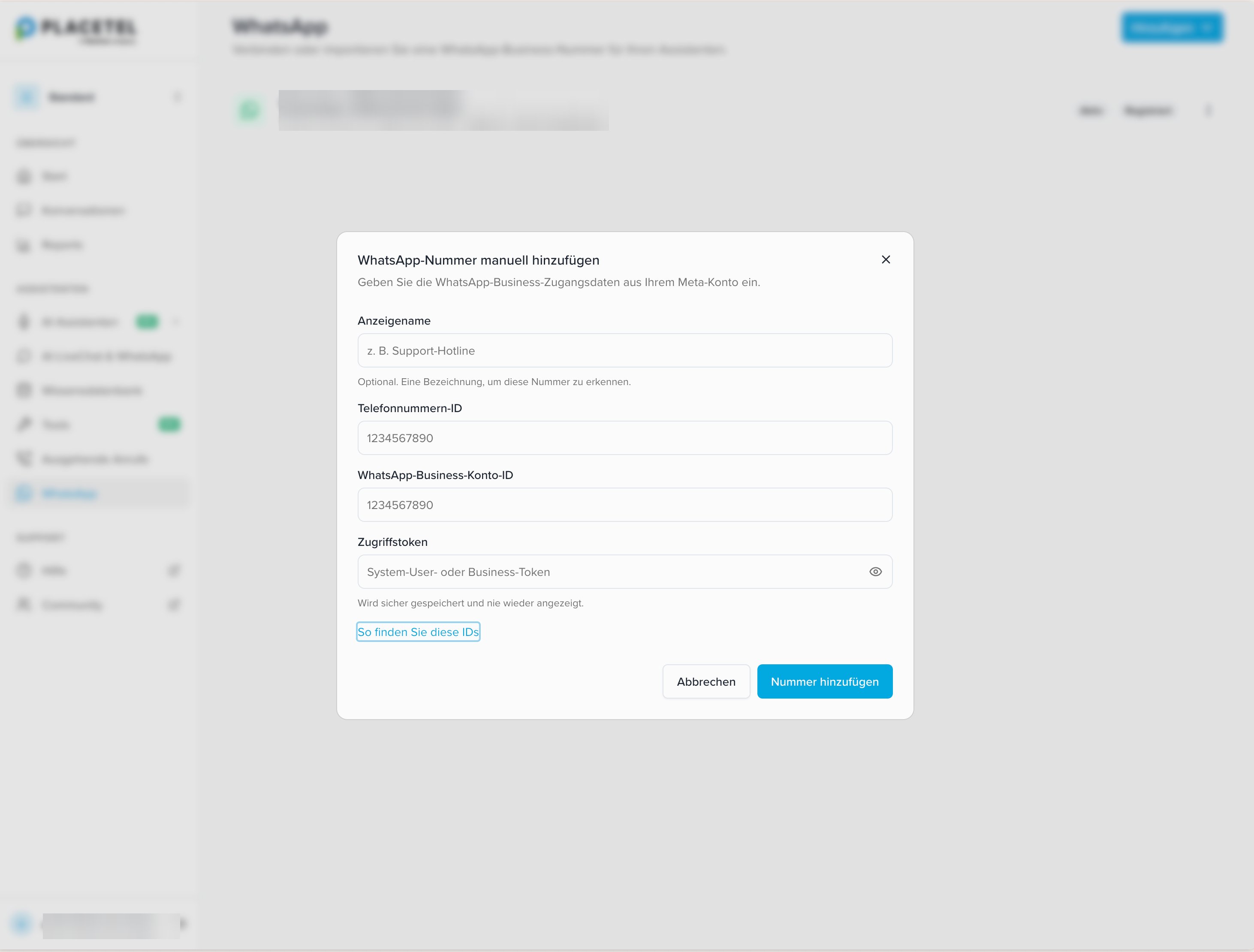 | Field | Required | Description |
| :------------------------------- | :------- | :------------------------------------------------------------------------------------------------- |
| **Display name** | Optional | A freely chosen label to recognize this number (e.g. "Support hotline"). |
| **Phone number ID** | Yes | The *phone number ID* of your WhatsApp number from the Meta account (not the phone number itself). |
| **WhatsApp Business account ID** | Yes | The *WhatsApp Business Account ID* (WABA ID). |
| **Access token** | Yes | A system user or business token from your Meta account. |
Then click **Add number**.
The access token is **stored securely and never shown again**. Keep a copy in a safe place in case you need it later.
### How to find these IDs
The required values come from your Meta account. In the dialog, the **How to find these IDs** link takes you straight to the matching instructions.
* **Phone number ID and WABA ID:** in the **[WhatsApp Manager](https://business.facebook.com/wa/manage/)** under your phone number, or in **[Meta for Developers](https://developers.facebook.com/apps/)** under *Your app → WhatsApp → API Setup*. Both IDs are shown there together.
* **Access token:** in **Business settings → System users**, create a **system user** and generate a token with the permissions `whatsapp_business_messaging` and `whatsapp_business_management`.
Use a **system user token** (long-lived). The temporary token from API Setup expires after 24 hours - the connection would then break. It is therefore not suitable for production use.
### Registering the number
After adding a number manually, it may still need to be **registered** with Meta. Use the **Register** action next to the number in the list. Once the number is ready to use, it is shown as **Active**.
## Choosing a number
Which phone number you can connect depends on where it is used today:
* **Existing WhatsApp Business number:** connect it via the import. Meta guides you through migrating it into your WhatsApp Business account.
* **Personal mobile number with WhatsApp:** if the number is already linked to the regular WhatsApp app, you must **delete** that account first before you can use the number for business.
* **Landline number:** a landline can be connected as long as it isn't otherwise linked to WhatsApp. During verification, choose confirmation **by phone call**.
* **New number:** you can obtain and verify a new number at Meta.
For production use, Meta usually requires a **verified business identity** and a **payment method** on the WhatsApp Business account. Verification by Meta can take a few days.
## Assigning an assistant
Click a connected number in the list to manage it. At the top, the **Active** and **Registered** labels show that the number is ready to use.
The view has three areas:
* **WhatsApp account:** shows the number's **phone number ID** and **WABA ID**. Use the copy icon to copy each value.
* **AI Assistant:** in the dropdown, select a **chat assistant** to answer messages sent to this WhatsApp number. Voice assistants are not offered here. The assignment takes effect immediately.
* **Settings → Audio messages:** when this toggle is on, the assistant may **answer WhatsApp voice messages with audio messages**. Turn it off if the assistant should reply with text only.
Create the chat assistant under **AI Assistants → Overview → Create → Chat assistant**. You can [configure and test it in the wizard](/docs/en/agent-setup) before assigning it to WhatsApp. Configure the **First message** there as well.
## FAQ
**What is the difference between "Import" and "Add manually"?** With import, Meta connects your number in a few clicks and hands over the credentials automatically. With manual adding, you enter the phone number ID, WABA ID, and an access token yourself - useful if you already manage your account in Meta Business Manager.
**Which path should I choose?** In most cases, **Import**: it is faster and avoids typos in IDs and tokens.
**I don't have a WhatsApp Business account yet. What do I do?** You can create one directly at Meta during the **import**.
**Can I use my personal WhatsApp number?** Only if you remove it from the regular WhatsApp app first. A number cannot be connected in the consumer app and for business at the same time.
**My token isn't accepted, or the connection breaks.** You probably used a **temporary token** that expires after 24 hours. Create a **system user token** and add the number again.
**Where do I find the phone number ID and WABA ID?** In the **WhatsApp Manager**, or under **Meta for Developers → Your app → WhatsApp → API Setup**. The **How to find these IDs** link in the dialog takes you straight there.
**Can the assistant reply to voice messages?** Yes. In the number's management view, turn on the **Audio messages** toggle under **Settings**; the assistant then answers WhatsApp voice messages with audio messages.
| Field | Required | Description |
| :------------------------------- | :------- | :------------------------------------------------------------------------------------------------- |
| **Display name** | Optional | A freely chosen label to recognize this number (e.g. "Support hotline"). |
| **Phone number ID** | Yes | The *phone number ID* of your WhatsApp number from the Meta account (not the phone number itself). |
| **WhatsApp Business account ID** | Yes | The *WhatsApp Business Account ID* (WABA ID). |
| **Access token** | Yes | A system user or business token from your Meta account. |
Then click **Add number**.
The access token is **stored securely and never shown again**. Keep a copy in a safe place in case you need it later.
### How to find these IDs
The required values come from your Meta account. In the dialog, the **How to find these IDs** link takes you straight to the matching instructions.
* **Phone number ID and WABA ID:** in the **[WhatsApp Manager](https://business.facebook.com/wa/manage/)** under your phone number, or in **[Meta for Developers](https://developers.facebook.com/apps/)** under *Your app → WhatsApp → API Setup*. Both IDs are shown there together.
* **Access token:** in **Business settings → System users**, create a **system user** and generate a token with the permissions `whatsapp_business_messaging` and `whatsapp_business_management`.
Use a **system user token** (long-lived). The temporary token from API Setup expires after 24 hours - the connection would then break. It is therefore not suitable for production use.
### Registering the number
After adding a number manually, it may still need to be **registered** with Meta. Use the **Register** action next to the number in the list. Once the number is ready to use, it is shown as **Active**.
## Choosing a number
Which phone number you can connect depends on where it is used today:
* **Existing WhatsApp Business number:** connect it via the import. Meta guides you through migrating it into your WhatsApp Business account.
* **Personal mobile number with WhatsApp:** if the number is already linked to the regular WhatsApp app, you must **delete** that account first before you can use the number for business.
* **Landline number:** a landline can be connected as long as it isn't otherwise linked to WhatsApp. During verification, choose confirmation **by phone call**.
* **New number:** you can obtain and verify a new number at Meta.
For production use, Meta usually requires a **verified business identity** and a **payment method** on the WhatsApp Business account. Verification by Meta can take a few days.
## Assigning an assistant
Click a connected number in the list to manage it. At the top, the **Active** and **Registered** labels show that the number is ready to use.
The view has three areas:
* **WhatsApp account:** shows the number's **phone number ID** and **WABA ID**. Use the copy icon to copy each value.
* **AI Assistant:** in the dropdown, select a **chat assistant** to answer messages sent to this WhatsApp number. Voice assistants are not offered here. The assignment takes effect immediately.
* **Settings → Audio messages:** when this toggle is on, the assistant may **answer WhatsApp voice messages with audio messages**. Turn it off if the assistant should reply with text only.
Create the chat assistant under **AI Assistants → Overview → Create → Chat assistant**. You can [configure and test it in the wizard](/docs/en/agent-setup) before assigning it to WhatsApp. Configure the **First message** there as well.
## FAQ
**What is the difference between "Import" and "Add manually"?** With import, Meta connects your number in a few clicks and hands over the credentials automatically. With manual adding, you enter the phone number ID, WABA ID, and an access token yourself - useful if you already manage your account in Meta Business Manager.
**Which path should I choose?** In most cases, **Import**: it is faster and avoids typos in IDs and tokens.
**I don't have a WhatsApp Business account yet. What do I do?** You can create one directly at Meta during the **import**.
**Can I use my personal WhatsApp number?** Only if you remove it from the regular WhatsApp app first. A number cannot be connected in the consumer app and for business at the same time.
**My token isn't accepted, or the connection breaks.** You probably used a **temporary token** that expires after 24 hours. Create a **system user token** and add the number again.
**Where do I find the phone number ID and WABA ID?** In the **WhatsApp Manager**, or under **Meta for Developers → Your app → WhatsApp → API Setup**. The **How to find these IDs** link in the dialog takes you straight there.
**Can the assistant reply to voice messages?** Yes. In the number's management view, turn on the **Audio messages** toggle under **Settings**; the assistant then answers WhatsApp voice messages with audio messages.