

You decide what your assistant learns. The feature suggests questions; you write and confirm the answers yourself. No new FAQ knowledge is published without Use answer. Here, “self-learning” means deliberately expanding knowledge with the help of suggestions from conversations.
Enable FAQ suggestions
1
Open the assistant
Open the relevant assistant and go to Behavior & Knowledge.
2
Enable FAQ suggestions
In Knowledge Base, the FAQ suggestions switch sits directly below the heading, above the connected sources. Enable it for this assistant.
3
Save the setting
In automatic saving mode, the change is saved immediately. If your wizard uses drafts, click Save to activate the setting. Until then, the change remains a draft.
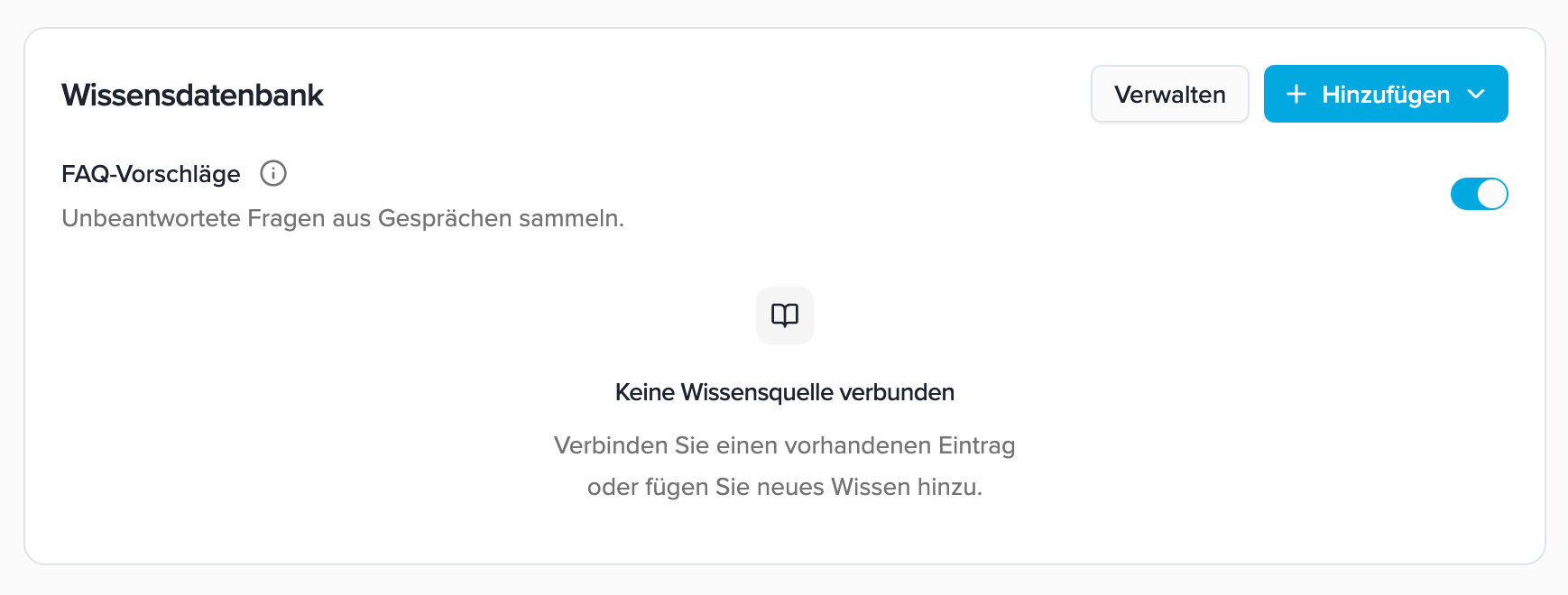
Enable FAQ suggestions directly in the Knowledge Base section.
FAQ suggestions require Standard Conversation and retained conversation transcripts. In Realtime Conversation, No retention, or No retention after post-processing, the switch is off and cannot be enabled. Switching to any of these modes automatically disables FAQ suggestions. After returning to supported settings, you can enable the feature again.An audio recording is not required. Automatic deletion is supported while the transcript is still available. See Transcript Retention for details.
What happens after a conversation?
The analysis looks for questions for which the assistant lacked a helpful answer, and checks potential suggestions against existing knowledge and previously identified questions. Not every conversation produces a suggestion: a fully answered conversation can finish without new FAQ. Analysis starts automatically after each eligible, completed conversation. Once processing is complete, new suggestions appear in your knowledge base. In the conversation details, Post-Processing shows an FAQ analysis entry once an analysis has been created. It displays the processing status and, where applicable, access to suggestions. An error means that the analysis could not be completed; it does not mean there were no open questions.Find and understand suggestions
Open Knowledge Base and click FAQ suggestions in the top right. The number on the button shows how many suggestions still need attention.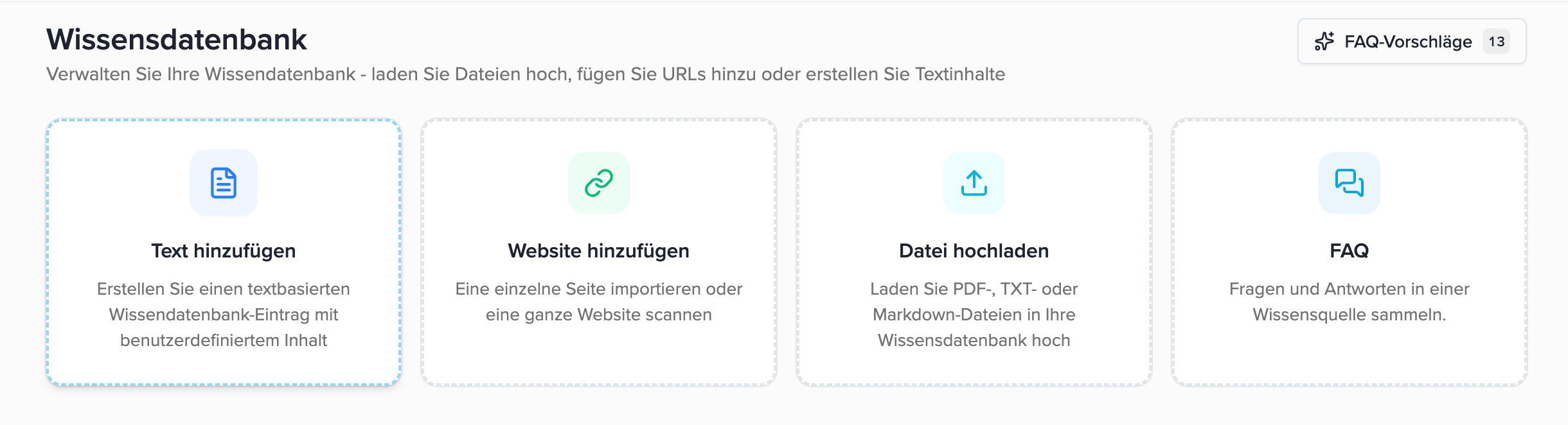
Open the suggestions list using FAQ suggestions in the top right.
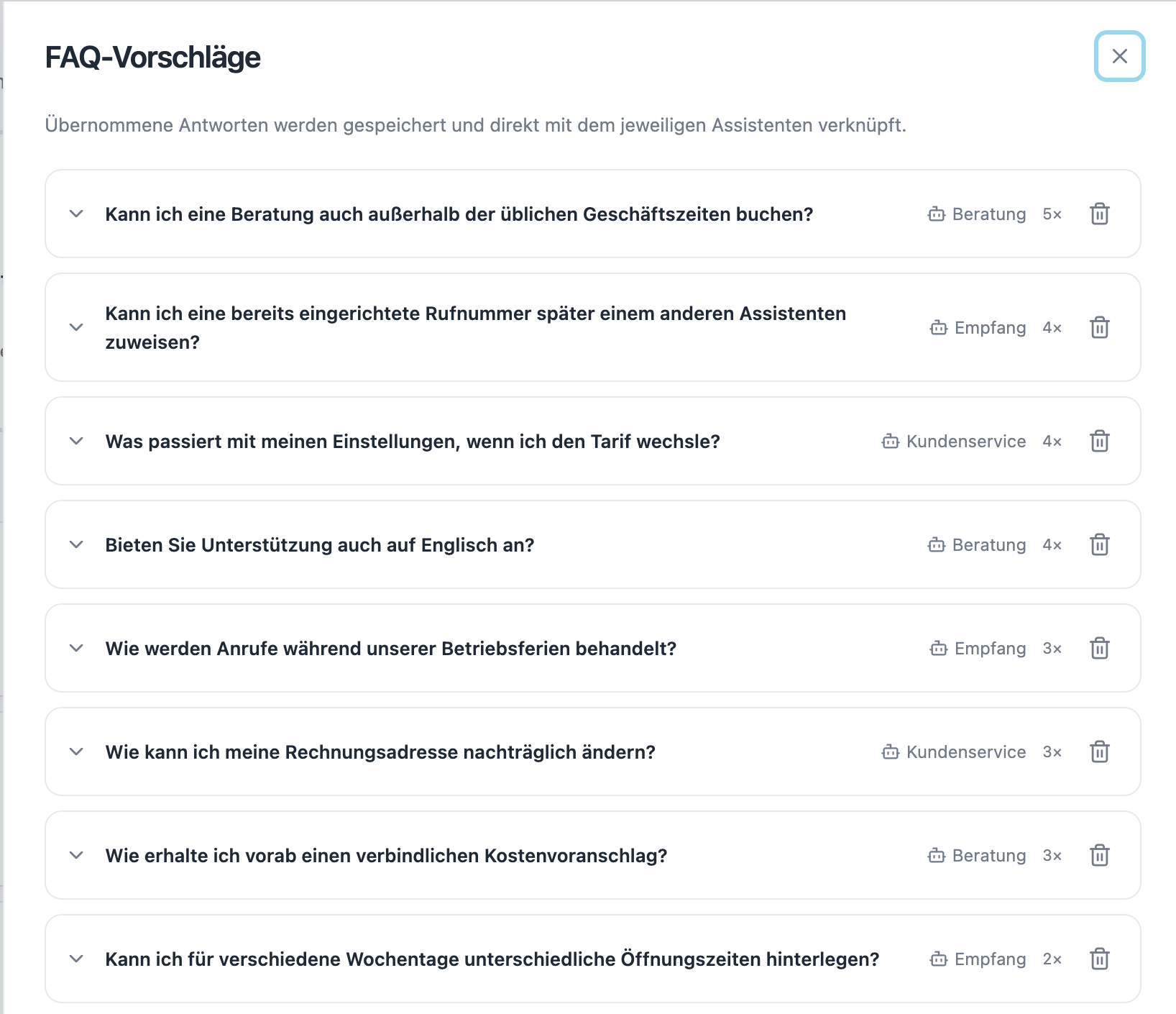
One shared list with assistant names and conversation counters.
Hover over the conversation counter to see its meaning. Click it to open the list of related conversations and navigate to a conversation. Similar questions from different assistants remain separate so that each answer is assigned to the right assistant.
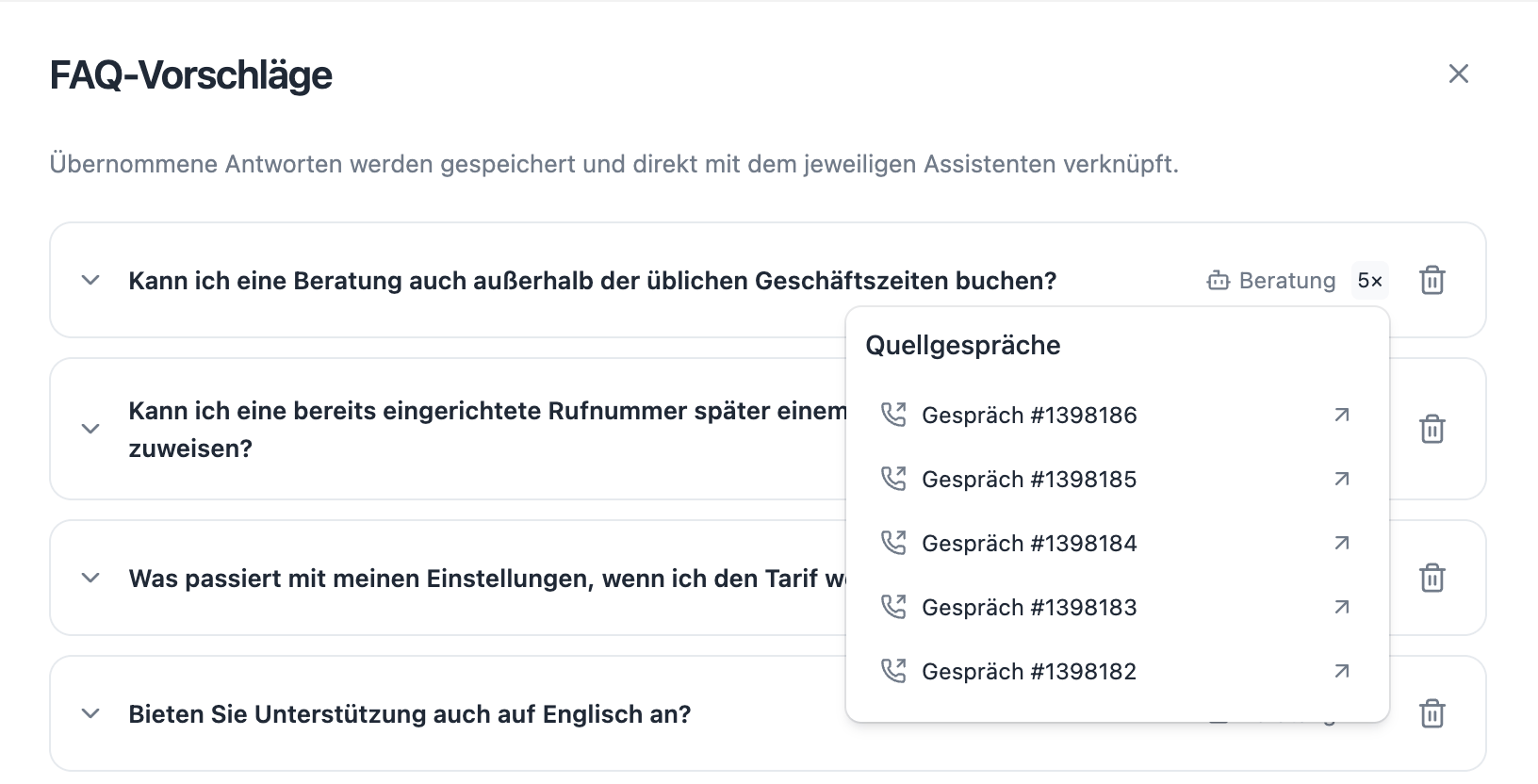
The counter opens the related source conversations.
Answer and accept a question
1
Expand the question
Click the question. The answer field appears below it. You can also adjust the wording of the question if needed.
2
Add a reliable answer
Write the answer the assistant should give in the future. Include specific conditions and exceptions. If anything is unclear, check the related conversation first.
3
Use the answer
Click Use answer on this question. The button becomes available once both question and answer are filled in. After a successful save, the suggestion disappears from the list and a brief confirmation appears. The panel stays open for the next questions.
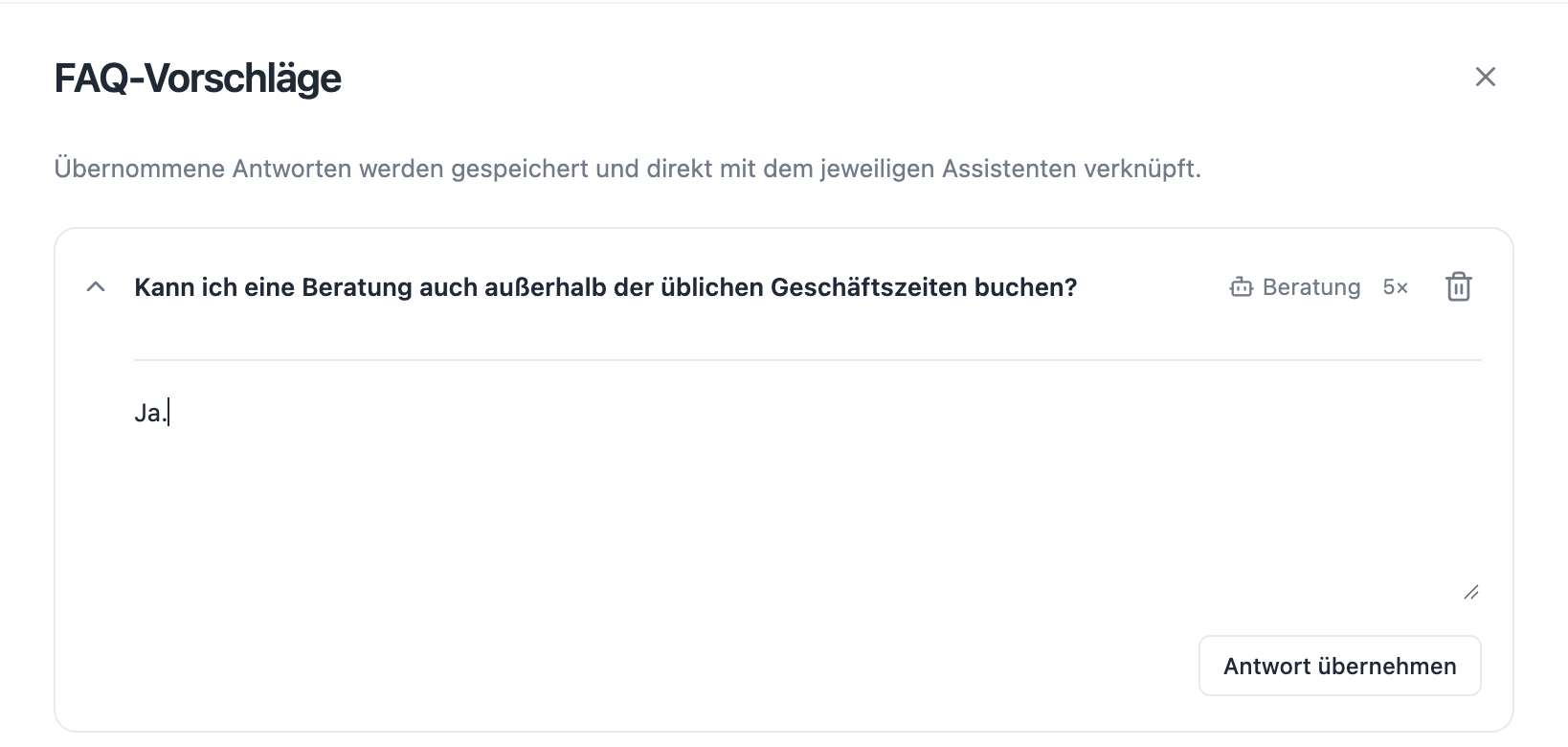
Enter an answer and confirm it individually with Use answer.
Where is the answer saved?
Accepting an answer automatically creates or updates the collection<assistant name>_Fragen_aus_Gesprächen, for example Beratung_Fragen_aus_Gesprächen, and connects it to the relevant assistant. You do not need to select a collection or activate an additional connection switch.
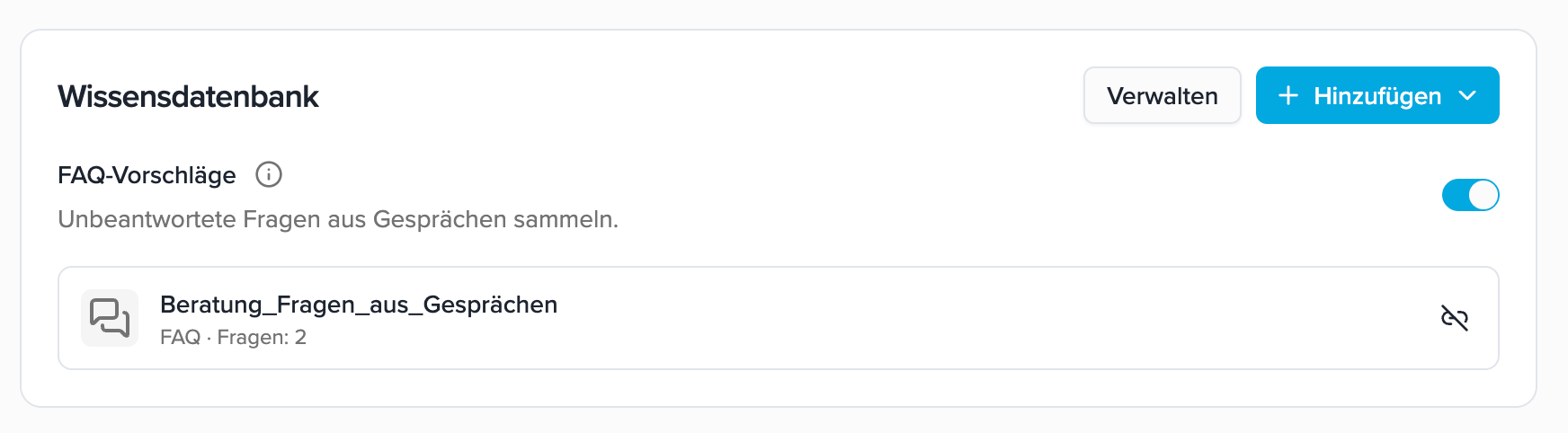
The FAQ collection is automatically connected to Beratung.
Dismiss suggestions or answer later
Use the trash icon to remove an unwanted suggestion from the list. This deletes neither the conversation nor FAQ that have already been saved. A dismissed suggestion is not reopened for review solely because of another matching conversation. You can leave unanswered questions for later. They remain available for review as long as their underlying conversation data is retained. Accept a completed answer before closing the panel; do not treat unconfirmed input as published FAQ.Pause and retention
Switch off FAQ suggestions for the assistant to stop new analyses. You can continue reviewing existing suggestions; saved FAQ remain connected and usable. Switching it on again restarts collection for new conversations. With automatic transcript deletion, analysis must take place within the retention period. If the underlying conversation data is deleted or expires, affected suggestions and their conversation counts may disappear. You continue to manage already accepted answers as FAQ in the knowledge base.If no suggestions appear
- Check activation: Is FAQ suggestions enabled for the correct assistant, and has the wizard draft been saved if required?
- Check conversation mode and retention: Realtime Conversation, No retention, and No retention after post-processing do not support FAQ analysis.
- Check new conversations: Has a conversation with an available transcript ended since activation?
- Allow analysis to finish: Processing may take a little time. Check the FAQ analysis entry in the conversation details if present.
- Interpret the result: No new questions can be a normal outcome. Questions that were answered or are already known do not necessarily produce new suggestions.
- Consider test calls: Browser test calls are excluded by default.
- Distinguish errors: If analysis or saving fails, follow the displayed message. Use the offered retry where available. If you see “FAQ analysis is not configured”, contact your administration.