

 MCP
MCPOverview
The Model Context Protocol (MCP) is a standardized way to make external tools available to an AI. With the custom MCP server integration, you connect your own MCP server (via HTTP / streamable transport) and make the tools this server provides available as tools for your voice agent. Unlike the fixed calendar integrations (e.g. Outlook or Calendly), there is no fixed tool list here: which tools are available depends entirely on the connected server. You enter the server address, have the available tools discovered automatically, and select the ones you want.Security: The credentials you enter are stored encrypted on the server and are only accessible to your account. Only enter the server address and any token if you trust the server.
Setting up the integration
- Open the Tools page in the sidebar
- Click Create tool and select MCP Server
-
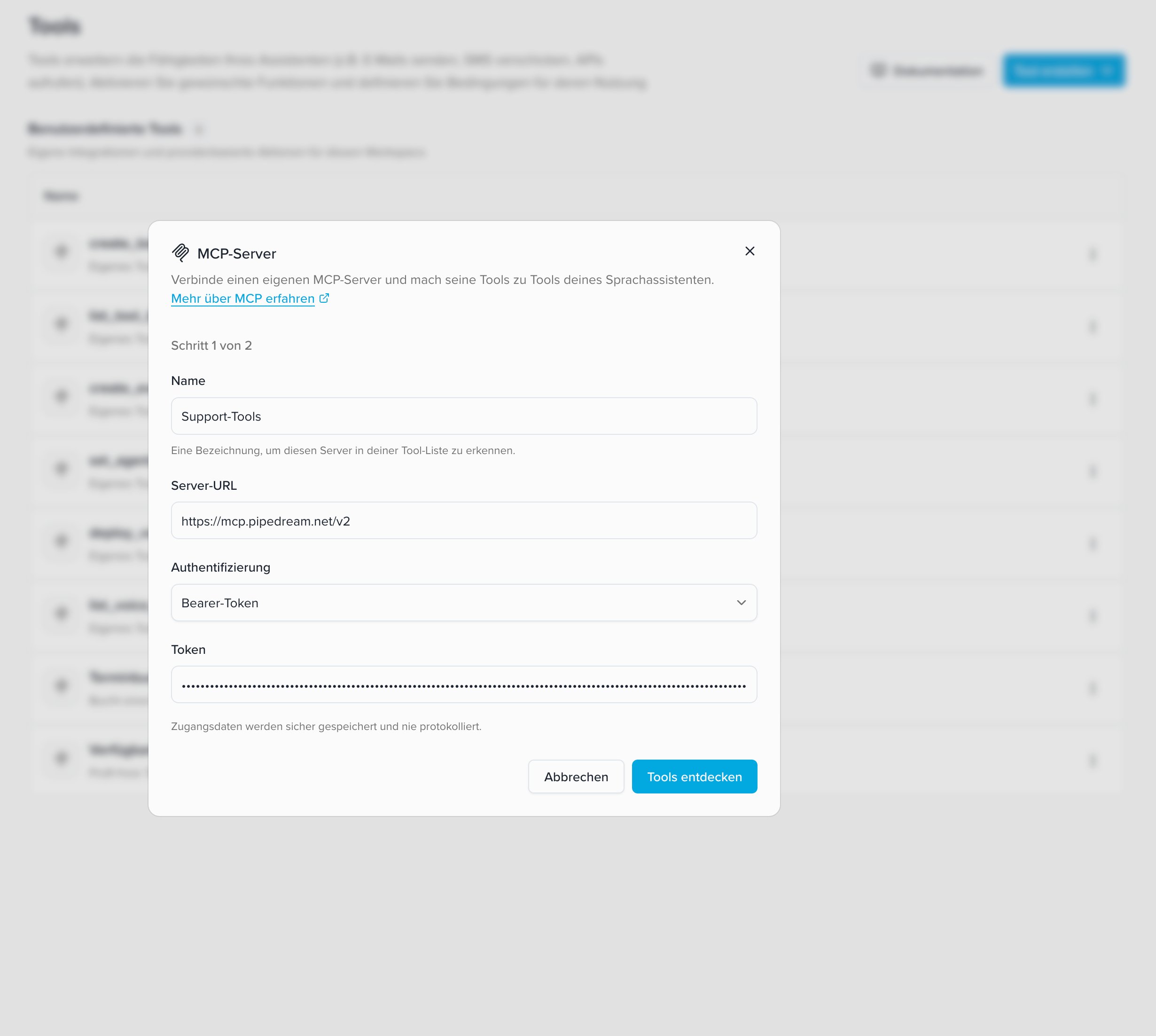
Connection step (step 1 of 3): Fill in the connection details:
- Name — freely choosable. Only used for identification and later appears as a label on the tools in the tool list
- Server URL — the address of your MCP server
- Authentication — None, Bearer token, or Custom header. With Bearer token you additionally enter the token; with Custom header a header name and a header value
-
Click Discover tools. The server is queried (
tools/list) and the available tools are loaded -
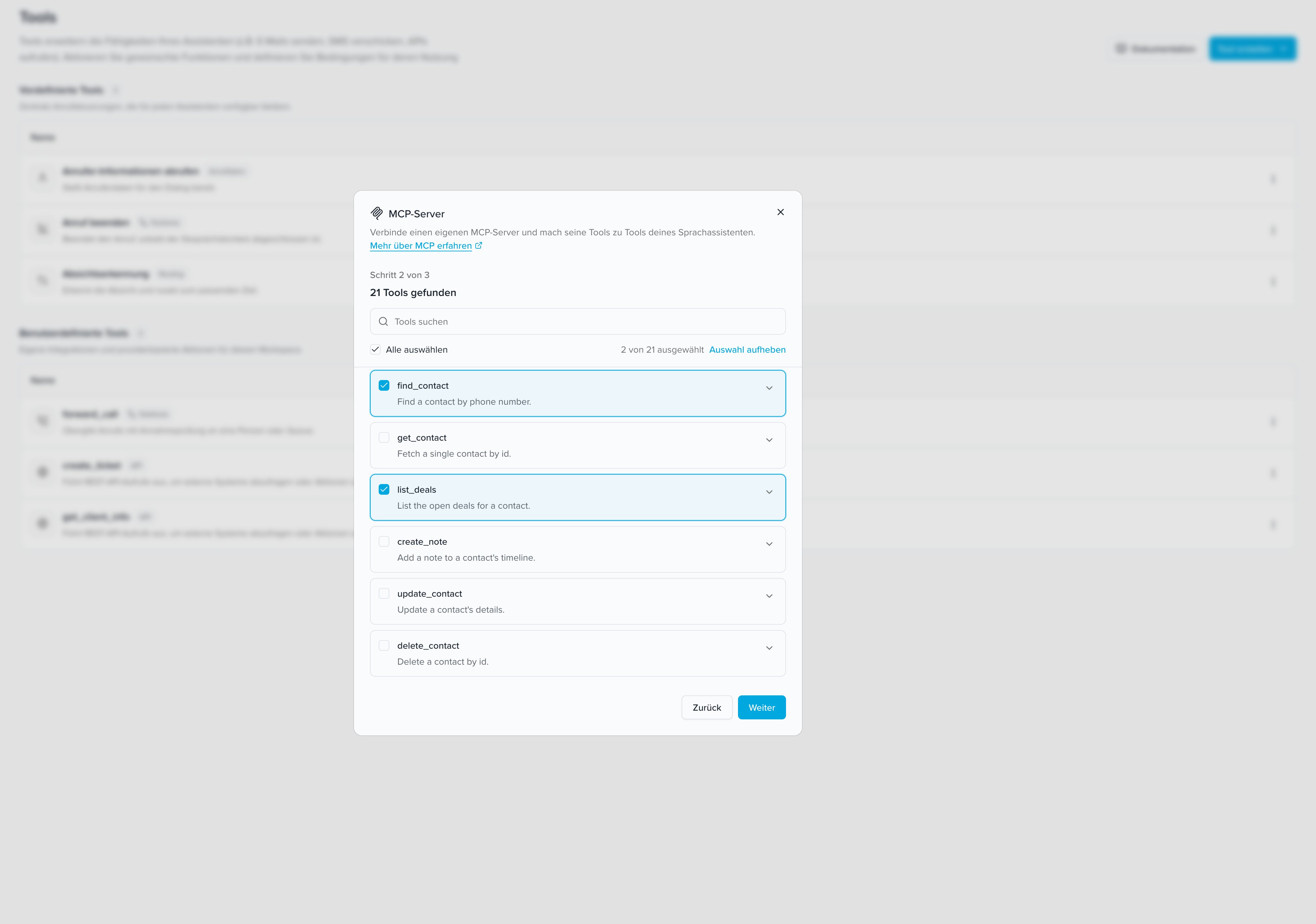
Selection step (step 2 of 3): Select the tools you want from the list of discovered tools. Multiple selection is possible; with Select all you select the entire (filtered) list. Use the search field to narrow down the list; use the arrow on each tool to expand its parameters. Then click Next
- Review step (step 3 of 3): Review your selection once more and confirm with Add N tools
- The selected tools then appear in the tool list — marked with an MCP icon and a badge with the name you assigned to the server. From there they are available globally like all tools and can be assigned to a voice agent
- Open the voice agent you want and switch to the Tools tab. There, enable the desired MCP tool for this agent
Shared tools: Like all tools, MCP tools are available globally once created. You only need to enable them per voice agent in the Tools tab. Learn more at Tools.
Already existing tools: Tools whose name already exists as a tool in your account are skipped when adding. In the results list they are marked as added and cannot be selected again.
Available tools
Unlike Outlook with its two fixed tools, MCP tools are discovered dynamically from the server. The available tools are therefore server-specific — there is no fixed list that applies to everyone. Each discovered tool shows a name and a description from the server; the parameter view additionally shows the individual input fields (name, type, and whether they are required). Only select the tools your agent actually needs.Example
The following excerpt is illustrative only and comes from a simple CRM (customer management) — a typical integration, for instance to identify callers by their phone number and leave a call note. Which tools your server provides is only visible after clicking Discover tools.Prompting notes / security
Only select the tools you need
Deliberately select only the tools the agent really needs.Suitability for phone conversations
Not every tool is suitable for a voice call:- Tools that expect IDs or codes the caller would have to dictate work poorly over the phone.
- Tools that return large amounts of data can hardly be read out loud in a useful way.
- Prefer simple queries and actions with few, clear parameters.
Authentication
- Bearer token: The header
Authorization: Bearer <Token>is sent. - Custom header: The entered value is sent under the header name you specified (e.g.
X-API-Key: <value>). - None: No credentials are sent.