

 MCP
MCPOverview
With the Microsoft Outlook Calendar integration, your voice agent can find available slots in a connected Outlook calendar and book new appointments directly. You connect Outlook once via Microsoft’s OAuth flow and then create the calendar tools you want from it.Security: You are redirected to Microsoft to confirm access. The credentials are stored encrypted on the server and are only accessible to your account.
Setting up the integration
Admin consent: If your Microsoft 365 organization restricts consent to apps, a Microsoft Entra administrator must approve the requested permissions. If the application is already listed, the administrator can find it in the Entra admin center → Entra ID → Enterprise apps → All applications → Security → Permissions and, after reviewing the permissions, select Grant admin consent. Then start the Outlook connection again. Microsoft’s guide.
- Open the Tools page in the sidebar
- Click Create tool and select Microsoft Outlook Calendar
-
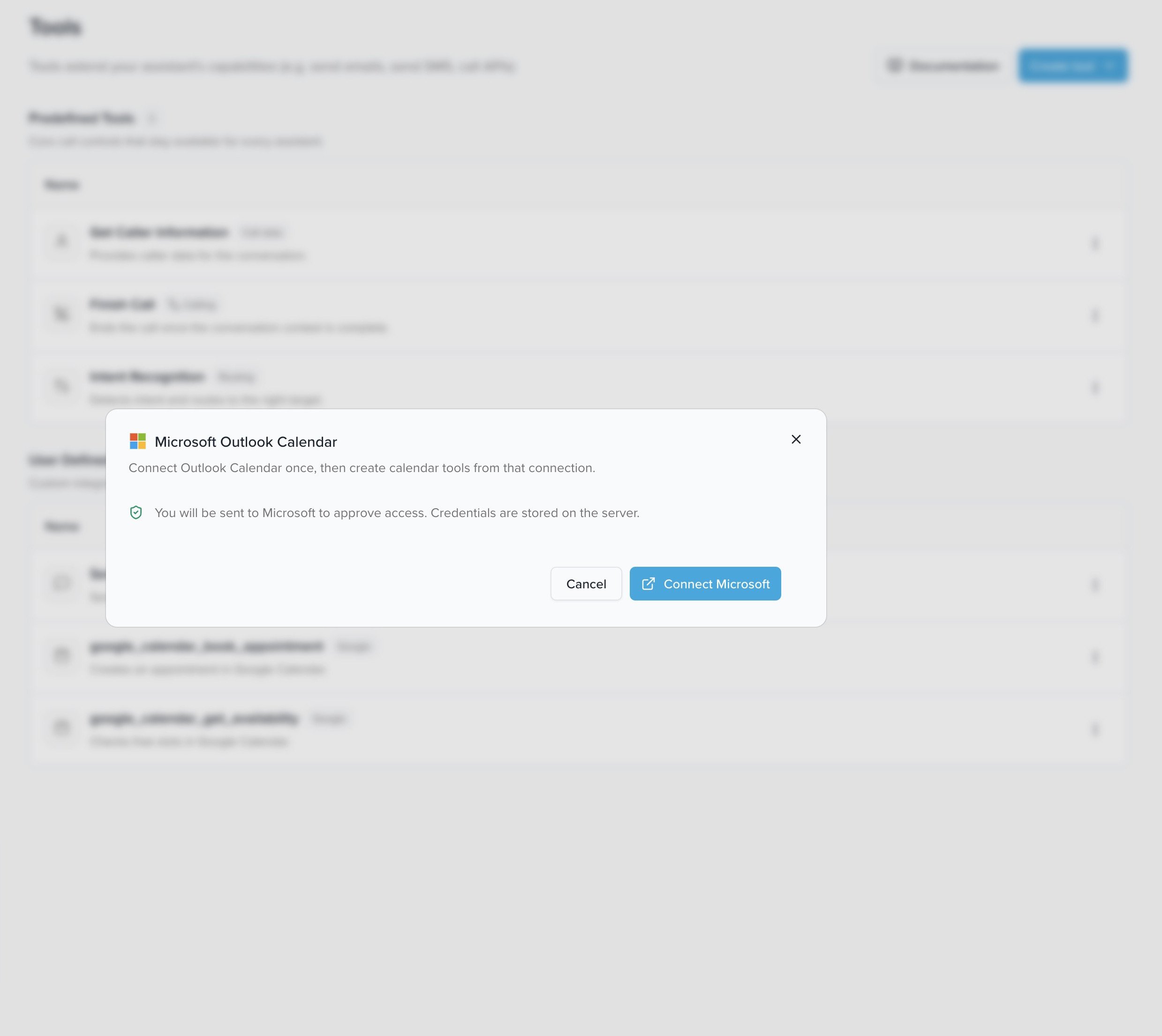
Confirm in the dialog with Connect Microsoft — you are redirected to Microsoft
-
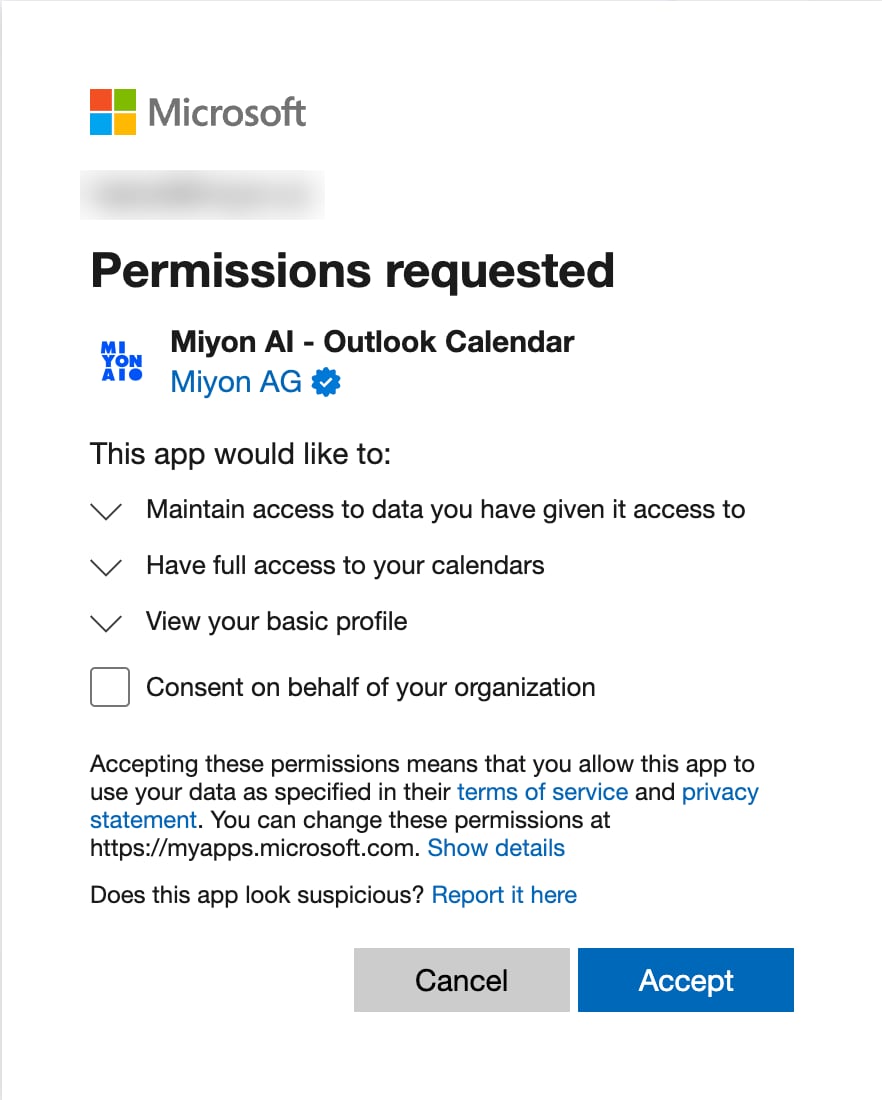
Follow Microsoft’s OAuth flow and confirm the requested permissions with Accept
-
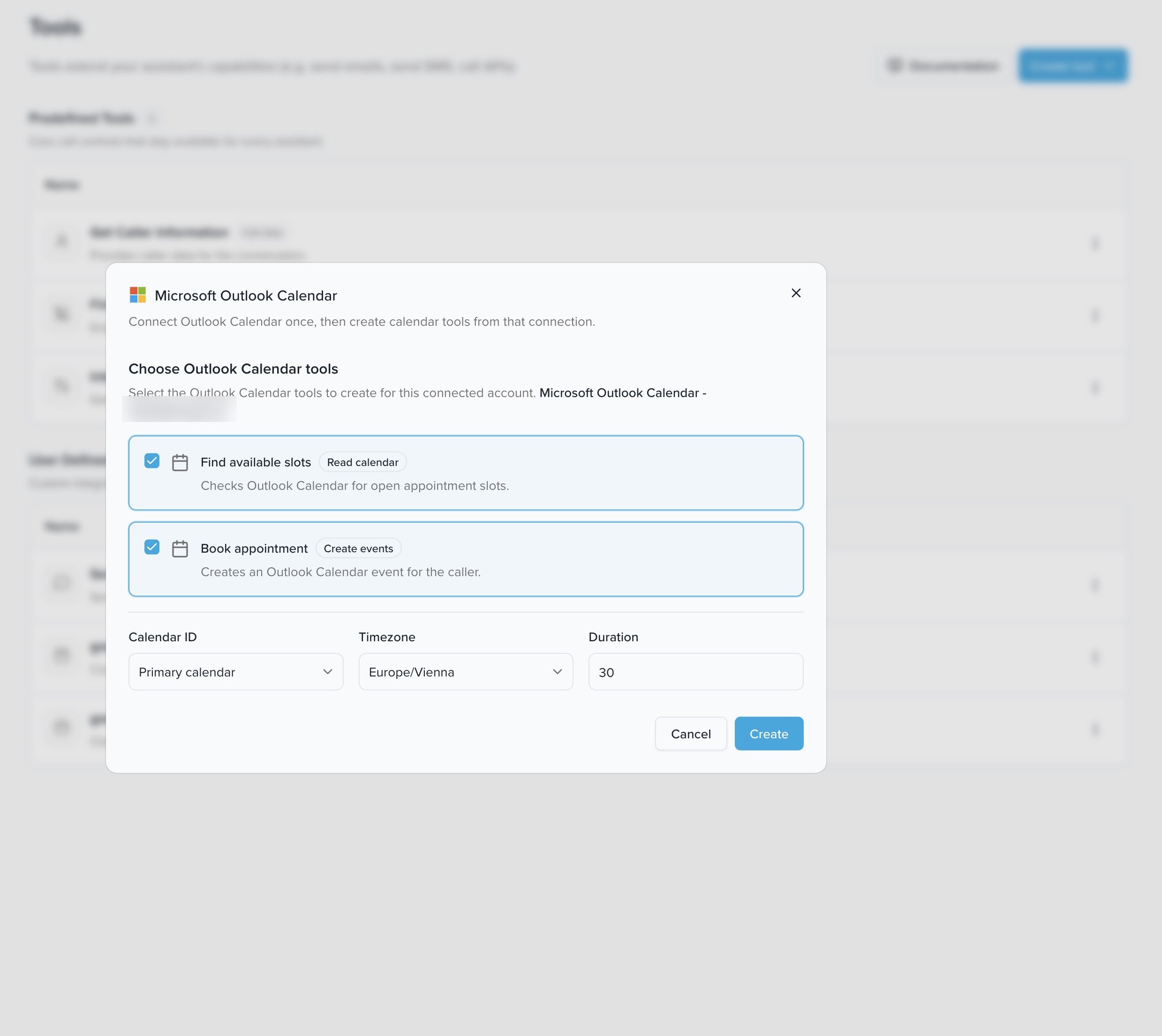
Choose the calendar tools to create for the connected account (Find available slots and/or Book appointment) and set the Calendar ID, Timezone, and Duration (default appointment duration in minutes). Click Create
-
Open the voice agent you want and switch to the Tools tab. There, enable the Outlook tools for this agent
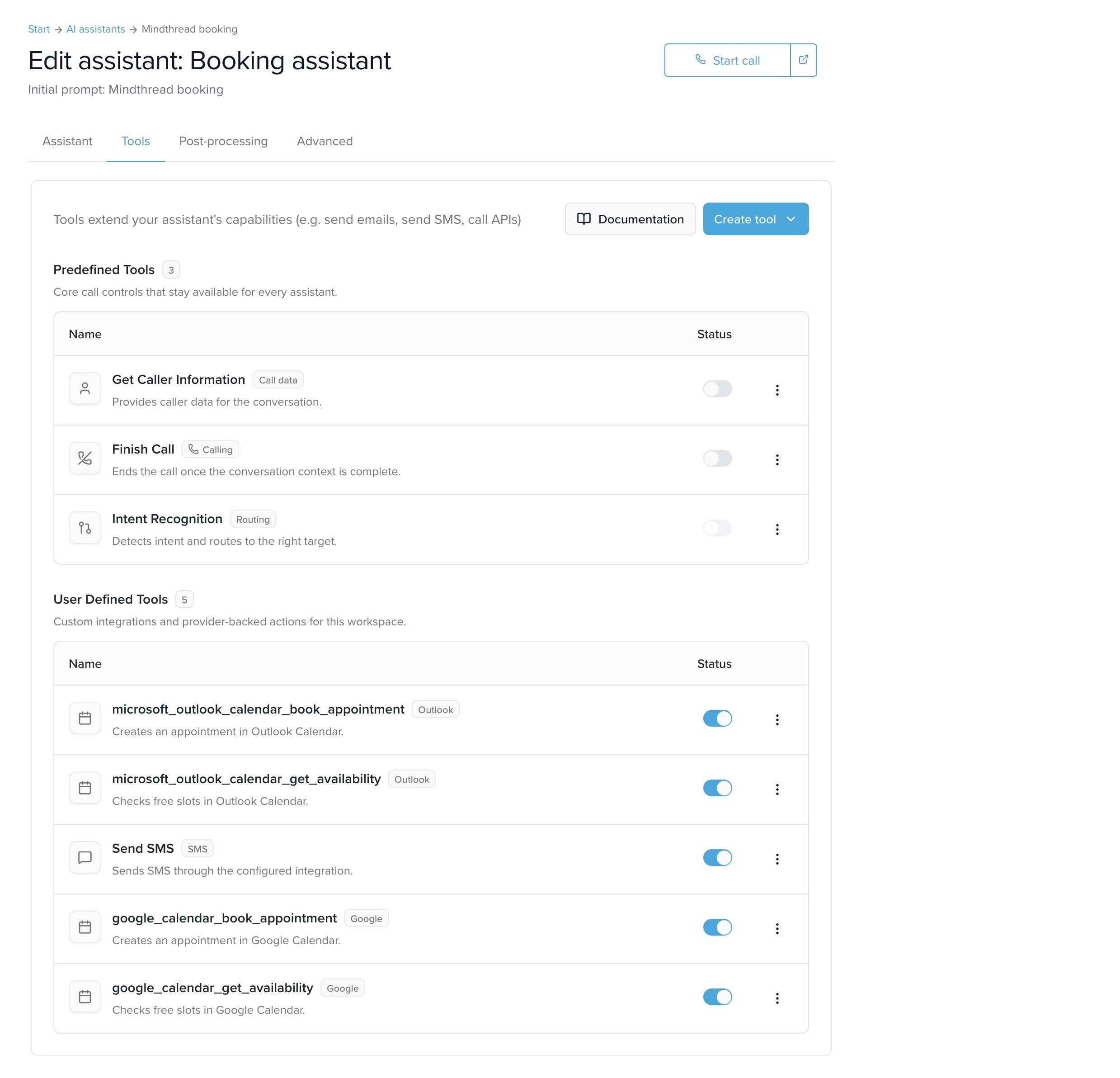
Shared tools: Like all tools, the Outlook tools are available globally once created. You only need to enable them per voice agent in the Tools tab. Learn more at Tools.
Available tools
When connecting, up to two tools are created:microsoft_outlook_calendar_get_availability
Finds available time slots in the connected Outlook calendar (Read calendar). Typical use: the caller asks about available appointments before booking.
microsoft_outlook_calendar_book_appointment
Creates an appointment in the connected Outlook calendar (Create events). Typical use: the caller has chosen an available slot and the appointment is booked.
Booking appointments — prompting notes
For the voice agent to call the booking tool reliably, your prompt should describe which details it needs to collect and how to handle missing or vague information. The required details are title, start, and end — start and end must be resolved to a concrete date with a time before booking.Example: minimal booking
„Buche morgen um 14:00 einen Beratungstermin für 30 Minuten.”
Example: booking with attendee and location
„Buche morgen um 14:00 ein Telefongespräch mit Max. Seine E-Mail ist max@example.com.”
What the agent should clarify
If a detail is missing, the agent should ask a targeted follow-up question before calling the tool:Rules for the prompt
- Collect all missing required details before the tool is called.
- For vague time expressions like „morgen Nachmittag” (tomorrow afternoon), ask for a concrete time — or first offer available slots with
microsoft_outlook_calendar_get_availability. - If the caller only gives a start but no duration, use the default appointment duration from the tool configuration. If none is configured, ask for the duration.
- Resolve relative dates like „morgen” (tomorrow) or „nächsten Montag” (next Monday) in the caller’s time zone.
- Do not mention technical fields like
calendar_idto the caller — unless the business uses multiple calendars and the caller needs to pick one.
Good caller phrasings
- „Buchen Sie mir morgen um 2 einen Termin.”
- „Vereinbaren Sie nächsten Montag vormittags eine Beratung.”
- „Können Sie mir für Freitag um 10 einen Termin eintragen?”
- „Buchen Sie ein Telefongespräch und schicken Sie mir eine Einladung.”
Business defaults: You set the timezone and default appointment duration once when creating the tool (step 5 under Setting up the integration). So the agent doesn’t have to ask for them on every call — it uses them automatically when the caller doesn’t specify their own.