

 MCP
MCPWhat is Live Monitoring?
With Live Monitoring, you can keep an eye on your Voice Agents’ calls in real time. See at a glance which conversations are currently in progress, follow them live, and step in whenever needed — all directly in your browser. Three things you can do:- Follow a conversation live — read the ongoing call as a live transcript.
- Take over a call — step into an ongoing conversation and continue it yourself.
- Send calls to the browser queue — have your team answer callers directly in the browser instead of routing them to a phone number.
Following a call’s live transcript
While a Voice Agent is on a call, you can read along in real time. During an active call, open Watch transcript — the live transcript updates line by line as the conversation happens. This lets you see immediately how your Voice Agent is responding to a request, and step in if needed. Watching a call requires no setup and is available for every Voice Agent.Note: For Voice Agents set to Zero retention or Zero retention after post-processing, no live transcript is shown, since no transcripts are stored for these Voice Agents. You can still take over the call. Learn more: Transcript Retention.
Taking over a call
Sometimes a caller would rather speak with a person — or you want to step in yourself. Join call lets you take over the call and continue the conversation yourself from that point on, directly in your browser. You can take over both an ongoing call and a caller who is already waiting in the queue for an employee.Sending calls to the browser queue
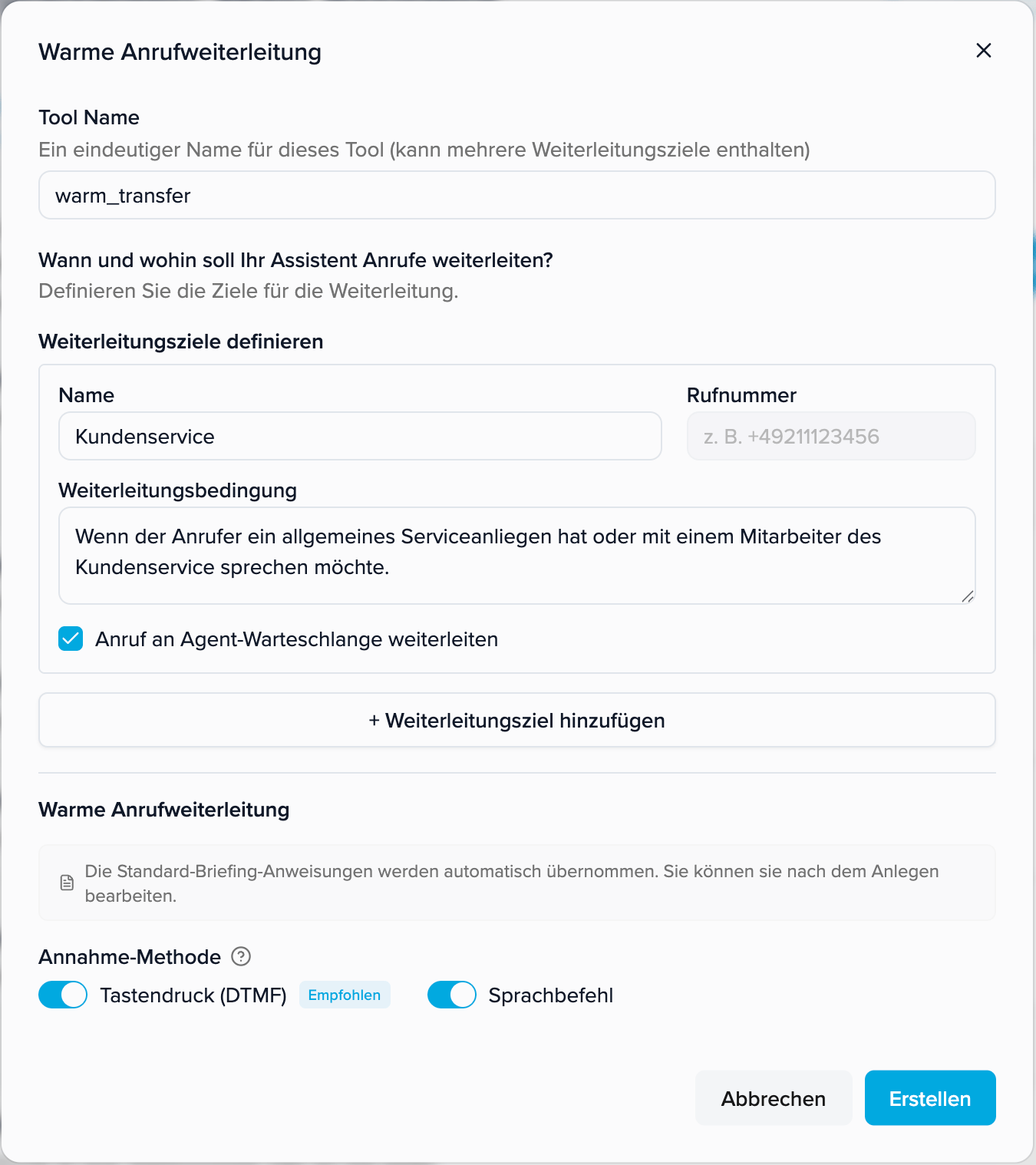
Instead of forwarding a call to an external phone number, your Voice Agent can send it to the browser queue. The caller then waits in the queue, and an available employee answers the call directly in the browser — no forwarding to a separate phone required. This lets several employees answer calls from one central place without setting up additional phones. You set up the handover to the queue in Warm Transfer. There, for each target, you decide whether a call goes to a phone number or to the browser queue:- Open Edit assistant → Tools → Warm Transfer (or add the tool).
- Under Define transfer targets, create a target: a Name (e.g. “Customer Service”) and a Forwarding Condition that tells your Voice Agent when to hand off to this target.
- Check “Forward call to agent queue”. A phone number isn’t required in this case — the call goes to the browser queue instead.
- Calls for this target now appear in the Queue in Live Monitoring, where an employee can answer them in the browser.
Opening Live Monitoring
- In the menu, open Live monitoring.
- Select the Voice Agent you want to watch.
- The console opens and shows that Voice Agent’s current calls.
- Active AI calls — calls your Voice Agent is currently handling.
- Queue — callers waiting to be taken over by an employee.
- Recent conversations — recently ended calls, for a quick look back.
Only one Voice Agent at a time can be monitored per account.