

 MCP
MCPOne library for your account
Every knowledge source belongs to your account’s shared knowledge base. It can be connected to one or more assistants. This also applies when you create a source directly in an assistant’s wizard: it is then available centrally and can be selected for other assistants. Creating a source and connecting it are two different steps:Expand knowledge from conversations
Self-learning FAQ identifies unanswered questions in conversations. Enable FAQ suggestions in the wizard under Behavior & Knowledge → Knowledge Base, directly below the heading. Review suggestions centrally through Knowledge Base → FAQ suggestions. Only when you accept an answer is it saved in the relevant assistant’s collection and automatically connected to that assistant.Four types of knowledge sources
Open Knowledge Base in the left sidebar. Here you create and manage sources independently of a particular assistant.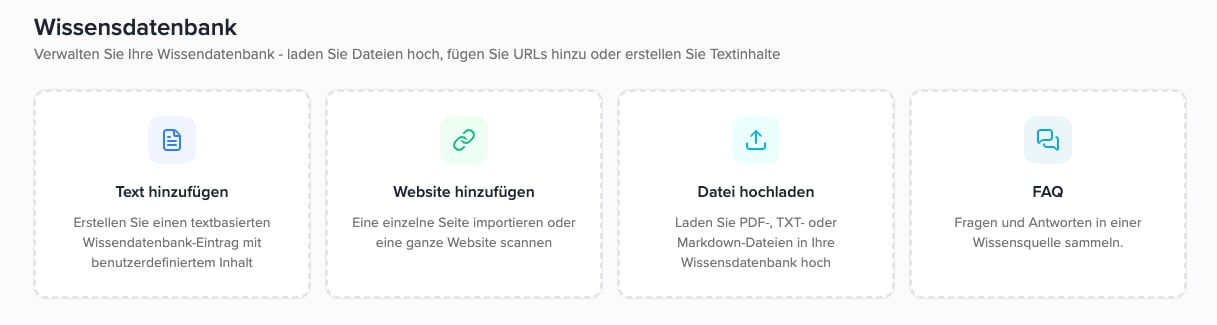
The central knowledge base offers four types of sources.
Connect and disconnect sources in the wizard
Open an assistant and go to Behavior & Knowledge. The Knowledge Base section shows the sources connected to this assistant.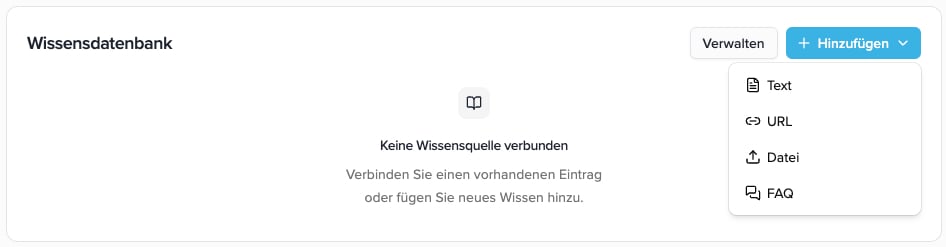
Use Add to create a new source directly in the wizard.
Connect existing sources
Open Manage
Select sources
Apply your selection
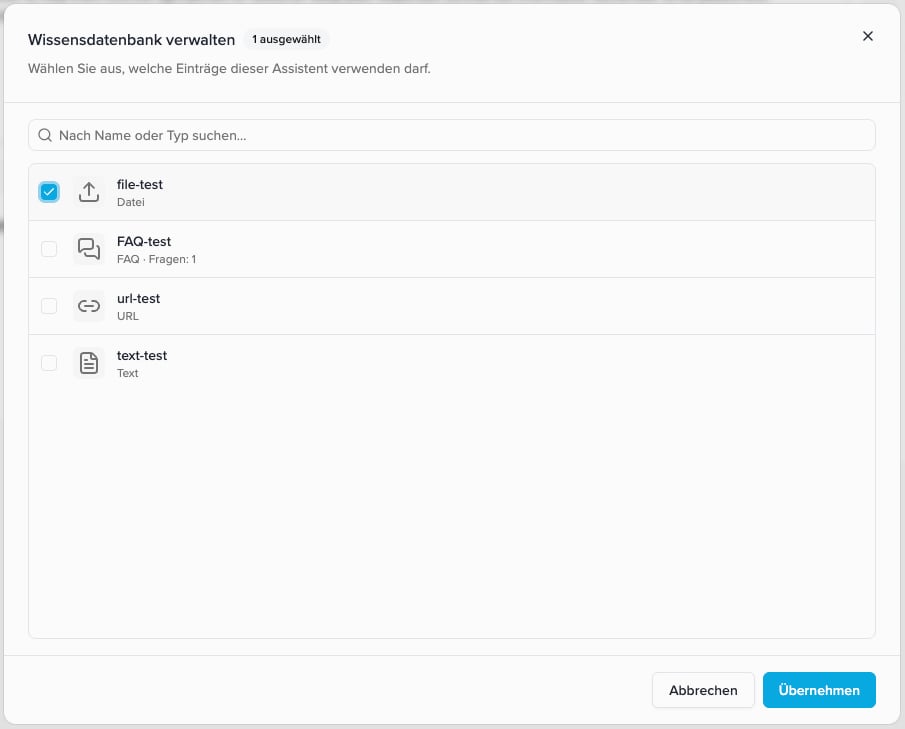
In this example, file-test is selected. Also check FAQ-test and click Apply to connect that collection as well.
Remove a connection
In the list of connected sources, click the broken-chain icon on the right. Alternatively, open Manage, uncheck the source, and click Apply.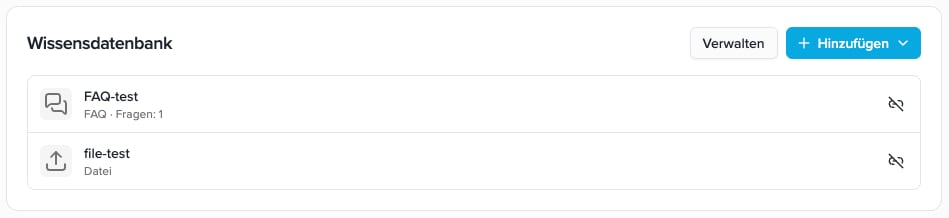
FAQ-test and file-test are connected. The icon on the right disconnects the corresponding source from this assistant.
View and edit content
Click a source’s name to open its content. For files and websites, check particularly carefully that the extracted information is complete and understandable. FAQ collections open the question-and-answer editor; for Text, File, and URL sources, you can review and edit the saved text.FAQ: many questions in one collection
An FAQ collection is one knowledge source containing multiple questions and answers. You do not need a separate knowledge base entry for each question. Useful collections include “Opening hours & directions”, “Services & prices”, or “Appointments & cancellations”.Create a collection and edit its name inline
Choose FAQ centrally or Add → FAQ in the wizard. The editor opens with an empty question. The title at the top is an input field: click directly on New FAQ collection or the existing name and enter the name you want. Press Enter or click outside the title to confirm it; press Esc to discard a name change you have not yet confirmed.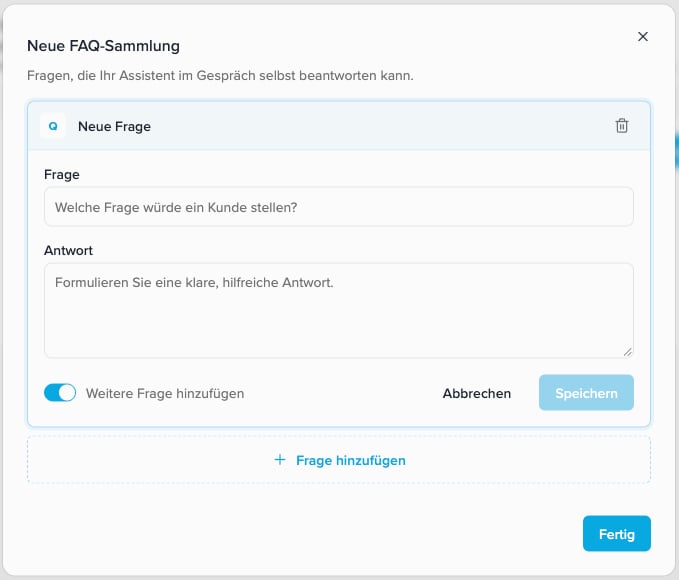
New FAQ collection can be edited directly at the top. Add another question at the bottom controls what happens after Save.
Enter a question and answer
Save the question
Add more questions or finish
What does “Add another question” do?
The switch is enabled by default. It only controls the next editing step after a successful click on Save.Maintain existing questions
Click a collapsed question, edit the question or answer, and click Save. Use the trash icon to remove a question-and-answer pair. A saved collection needs at least one complete pair; if you no longer need the entire collection, delete its entry in the central knowledge base.File: upload documents
Choose Upload file centrally or Add → File in the wizard. Drag files into the upload area or click Choose file.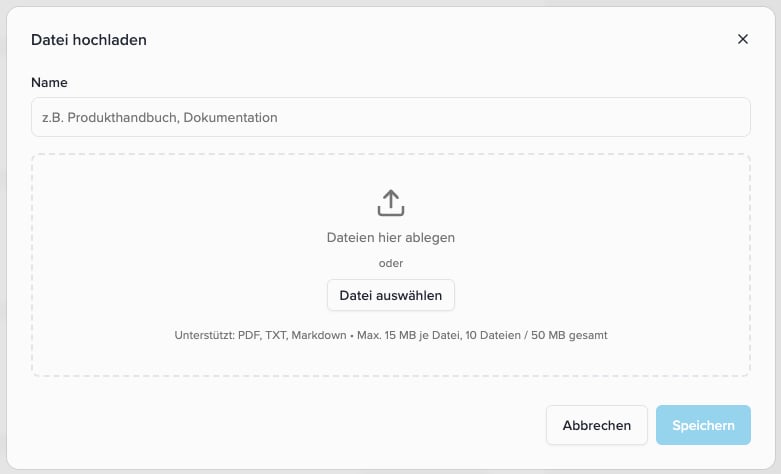
The upload shows supported formats and limits for a single file and a combined selection.
Supported formats and sizes
What is used from the document?
The assistant receives the extracted text, not the original page layout. Images, graphical tables, and scanned pages without a text layer are not reliable knowledge sources. If necessary, use OCR to make a scanned PDF searchable first, then check the imported content. In addition to file size, the amount of extracted text is checked. A document below 15 MB can therefore still be too large. Follow the displayed error message rather than a fixed PDF page count. Shorten such documents to the information the assistant needs or split them by topic.Text: enter information directly
Choose Add text or Add → Text in the wizard. Give the source a descriptive Name, write or paste its Content, and click Save.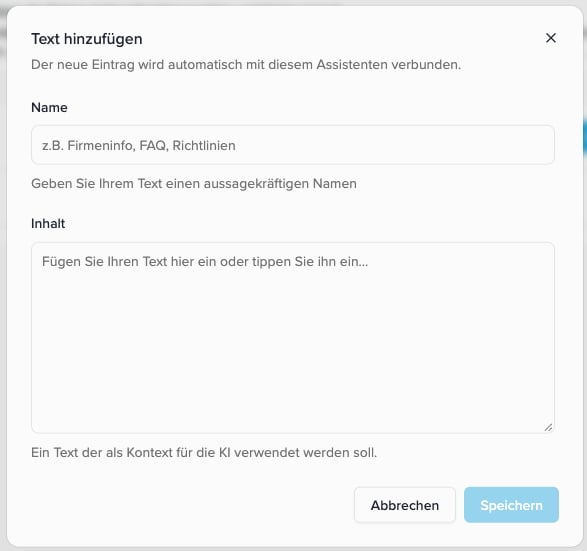
Text created in the wizard is stored centrally and connected to this assistant.
Website / URL: import content
Website sources contain a saved snapshot of the extracted website. The assistant does not open the page live on the internet for every question. The central Knowledge Base → Add website dialog offers two methods. The compact Add → URL form in the wizard imports a single page. To scan multiple pages, use the central knowledge base and connect the result in the wizard afterwards.Single page
Choose Single page, enter a name and the specific page address, for exampleexample.com/oeffnungszeiten, and click Save. Content is read from that URL without automatically importing the entire website.
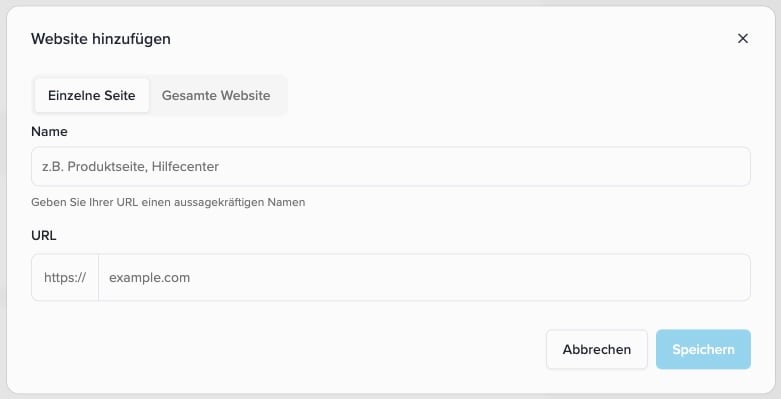
Single page is suitable for a specific service, contact, or information page.
Entire website: advanced scraping
Choose Entire website when the information you need is spread across several subpages. This advanced method discovers pages on the website and prepares the relevant content it finds.Enter the name and website
Limit the page count
Start the scan and review the result
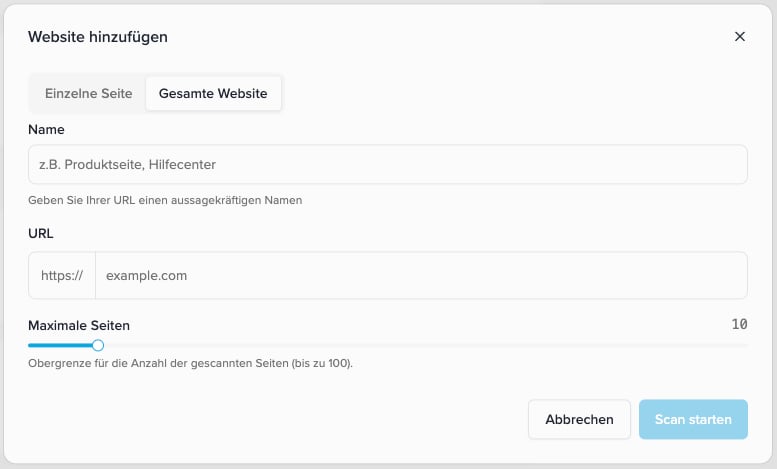
Entire website adds a page limit and starts a background scan.
Update content with “Re-scrape”
If your website changes, click Re-scrape on the existing entry. The content is read again while the entry and its connections are retained. For a source created by an entire-website scan, the advanced method runs again.
Re-scrape updates the existing source. The date shows the last saved version.
Keep knowledge current and manageable
- Select appropriate sources: Connect only the knowledge that a particular assistant needs. Merely having a source in the library is not enough.
- Maintain shared content centrally: Update the existing source instead of creating copies for every assistant. Use separate sources for information that differs, such as details for different locations.
- Test changes: Start a new test conversation after saving. Voice assistants load the saved knowledge when a new conversation is set up; editing does not retroactively update an ongoing conversation.
- Separate knowledge from instructions: Facts belong in the knowledge base. Describe response style, what to do when information is missing, and workflows in the assistant’s instructions. Connected sources are provided automatically as additional context; no manual prompt placeholders are needed.
- Keep content concise: Avoid duplicate or conflicting text. File size and text length are different limits; the application tells you when content is too extensive.
Context budget
The main instruction and the connected knowledge sources are sent to the language model together on every conversation. The wizard shows a yellow or red icon in the header of the main instruction as soon as this context reaches the recommended size. What is counted, how Standard and Realtime Conversation differ and how to stay within the budget is described under Context budget.Frequently asked questions
Why doesn't my assistant know an existing source?
Why doesn't my assistant know an existing source?
Do I need to create a source again for every assistant?
Do I need to create a source again for every assistant?
Can I connect only part of an FAQ collection?
Can I connect only part of an FAQ collection?
Why is a small PDF rejected or only partially read?
Why is a small PDF rejected or only partially read?
Is a website opened again for every answer?
Is a website opened again for every answer?