

 MCP
MCPConnecting WhatsApp
Overview
On the WhatsApp page you connect a WhatsApp Business number to Placetel. Once a number is connected, an AI assistant can answer the incoming WhatsApp messages from your customers. There are two ways to add a number:- Import (recommended): connect your number in a few clicks via Meta. Meta guides you through signing in and selecting your account and number - you don’t have to copy any IDs by hand.
- Add manually: enter the credentials (phone number ID, WABA ID, and an access token) yourself. Suitable if you already manage your WhatsApp Business account in Meta Business Manager.
Prerequisites
- A Meta Business account (Facebook Business).
- A WhatsApp Business account (WABA) within that Meta account.
- A phone number that is not already linked to a regular WhatsApp or WhatsApp Business app (consumer app). See Choosing a number.
- For production use, Meta may require a verified business identity and a payment method on the WhatsApp Business account.
Don’t have a WhatsApp Business account yet? You can create one directly at Meta during the import. Meta’s wizard walks you through the setup step by step.
Adding a number
Open WhatsApp in the sidebar. While no number is connected yet, you see the two options directly; once numbers exist, you find them under Add in the top right. Either way, you choose between Import and Manually Add.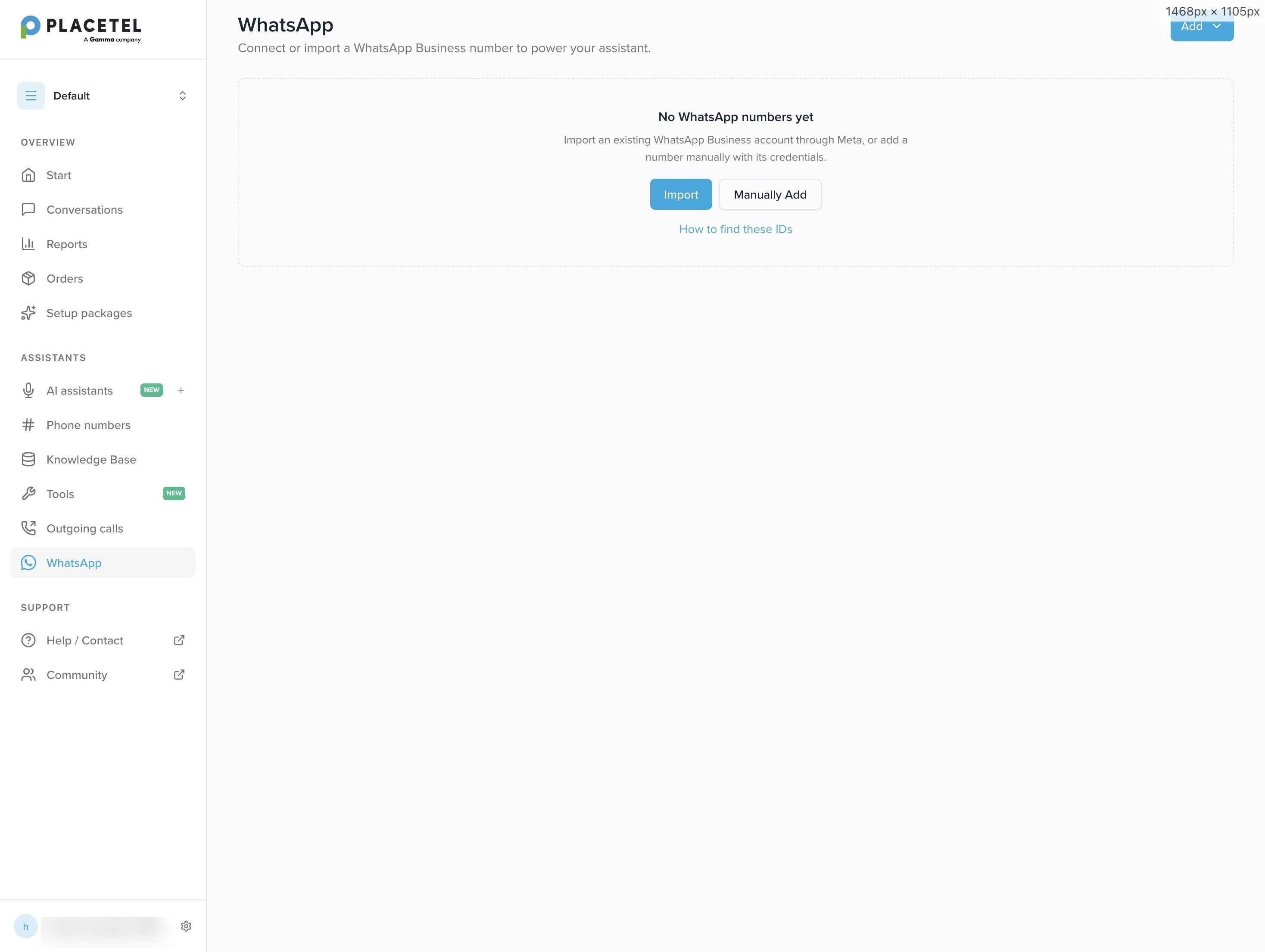
Method 1 - Import (recommended)
With the import, you connect your number through Meta’s Embedded Signup - a Meta window that guides you securely through the whole process. At the end, Meta hands the credentials (phone number ID, WABA ID, and token) to Placetel automatically; you don’t enter anything by hand.1
Start the import
Click Add → Import. A Meta window opens.
2
Sign in and select your Business Portfolio
Sign in with the Facebook/Meta account that manages your business, then select your Business Portfolio - the Meta business account that owns your WhatsApp assets (formerly “Business Manager”). If you don’t have one yet, create it in about a minute: business name and a valid contact email (not a throwaway address).
3
Select or create the WhatsApp Business account
Choose an existing WhatsApp Business account (WABA) or create a new one with your business details - your business category, website, and time zone.
4
Choose a number option
Decide how to provide a number: use a display name only (test number) or a new or existing WhatsApp number. See Number options during import.
5
Confirm and finish
Confirm the permissions Meta requests. The number then appears in the list on the WhatsApp page.
Number options during import
During the import, Meta offers two ways to provide a number:- Display name only: you provide just a display name and Meta gives you a free test number with the 555 prefix. This is the fastest way to run a chat demo. However, it is a test number - not intended for production use.
- New or existing WhatsApp number: you connect a real number. For which numbers are eligible and what to watch out for, see Choosing a number.
Method 2 - Add manually
Use this path if you have already set up your WhatsApp Business account in Meta Business Manager and want to enter the credentials yourself. Click Add, choose Manually Add, and fill in the dialog.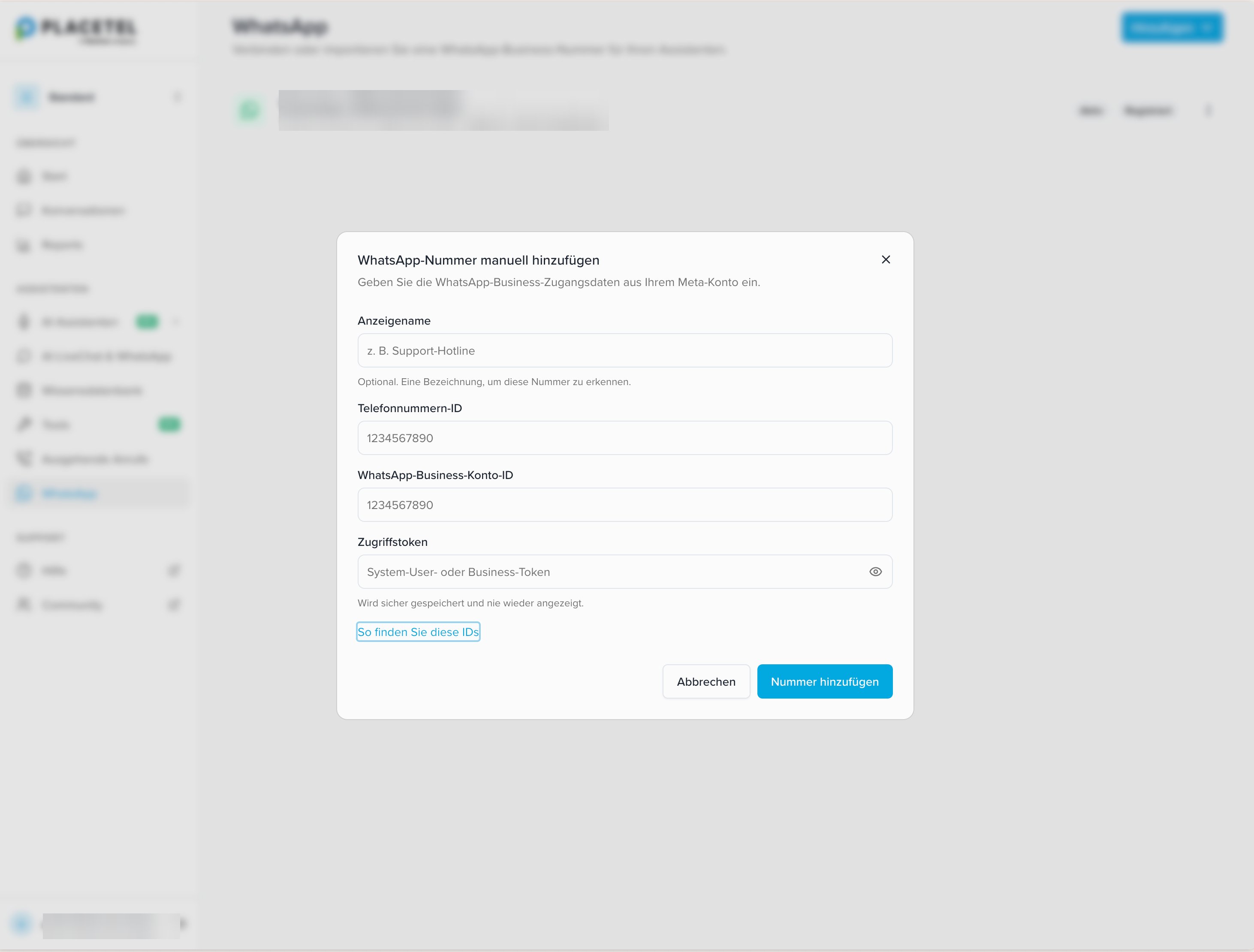
Then click Add number.
The access token is stored securely and never shown again. Keep a copy in a safe place in case you need it later.
How to find these IDs
The required values come from your Meta account. In the dialog, the How to find these IDs link takes you straight to the matching instructions.- Phone number ID and WABA ID: in the WhatsApp Manager under your phone number, or in Meta for Developers under Your app → WhatsApp → API Setup. Both IDs are shown there together.
- Access token: in Business settings → System users, create a system user and generate a token with the permissions
whatsapp_business_messagingandwhatsapp_business_management.
Registering the number
After adding a number manually, it may still need to be registered with Meta. Use the Register action next to the number in the list. Once the number is ready to use, it is shown as Active.Choosing a number
Which phone number you can connect depends on where it is used today:- Existing WhatsApp Business number: connect it via the import. Meta guides you through migrating it into your WhatsApp Business account.
- Personal mobile number with WhatsApp: if the number is already linked to the regular WhatsApp app, you must delete that account first before you can use the number for business.
- Landline number: a landline can be connected as long as it isn’t otherwise linked to WhatsApp. During verification, choose confirmation by phone call.
- New number: you can obtain and verify a new number at Meta.
For production use, Meta usually requires a verified business identity and a payment method on the WhatsApp Business account. Verification by Meta can take a few days.
Assigning an assistant
Click a connected number in the list to manage it. At the top, the Active and Registered labels show that the number is ready to use. The view has three areas:- WhatsApp account: shows the number’s phone number ID and WABA ID. Use the copy icon to copy each value.
- AI Assistant: in the dropdown, select a chat assistant to answer messages sent to this WhatsApp number. Voice assistants are not offered here. The assignment takes effect immediately.
- Settings → Audio messages: when this toggle is on, the assistant may answer WhatsApp voice messages with audio messages. Turn it off if the assistant should reply with text only.